Changelog v1.33 - May 7, 2026
Summary
Version 1.33 introduces several major additions:
- A keyboard-driven command palette for faster EHR navigation and charting, accessible from anywhere in the application with a single keyboard shortcut.
- A patient merge tool that allows authorized staff to consolidate duplicate patient records, preserving visit history, documents, insurance, and lab data.
- Scheduled billable follow-up visits with a full visit lifecycle: tracking board presence, all progress note modules, and RCM integration.
- A Review of Systems (ROS) module that mirrors the Physical Exam experience.
The release also delivers a series of patient safety and workflow improvements across the application.
Command Palette
Overview
-
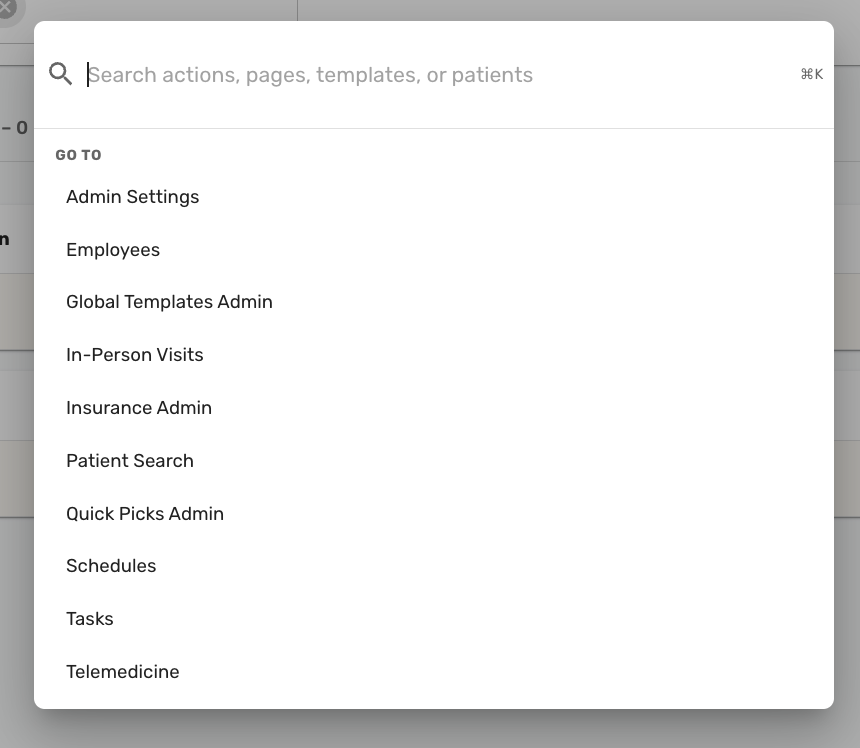
A keyboard-driven command palette is now available throughout the EHR. Pressing Cmd+K (Mac) or Ctrl+K (Windows) opens a search dialog from any page, providing a single entry point for actions that previously required navigating through menus or switching tabs (#6534 (opens in a new tab)).
What You Can Do From the Palette
-
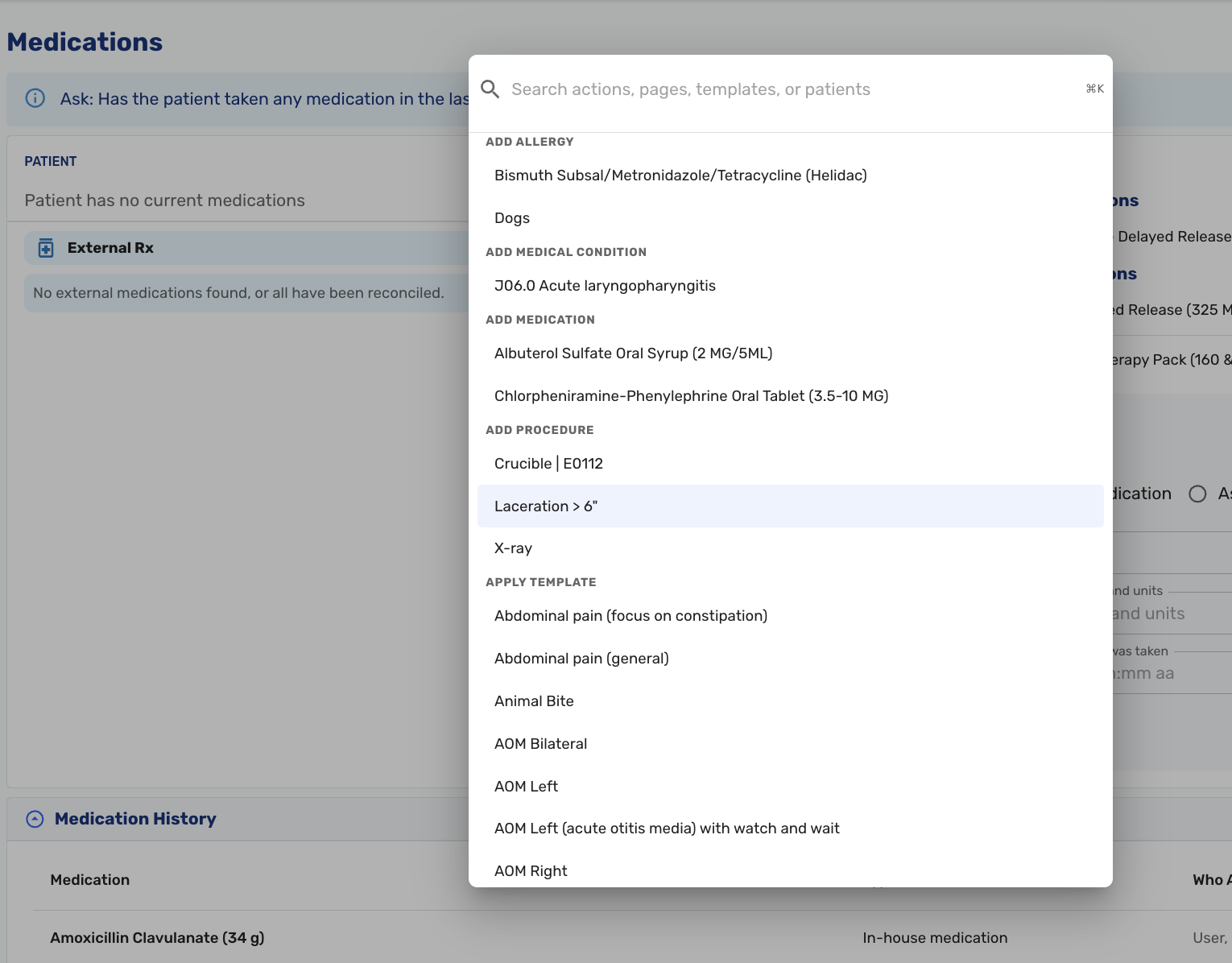
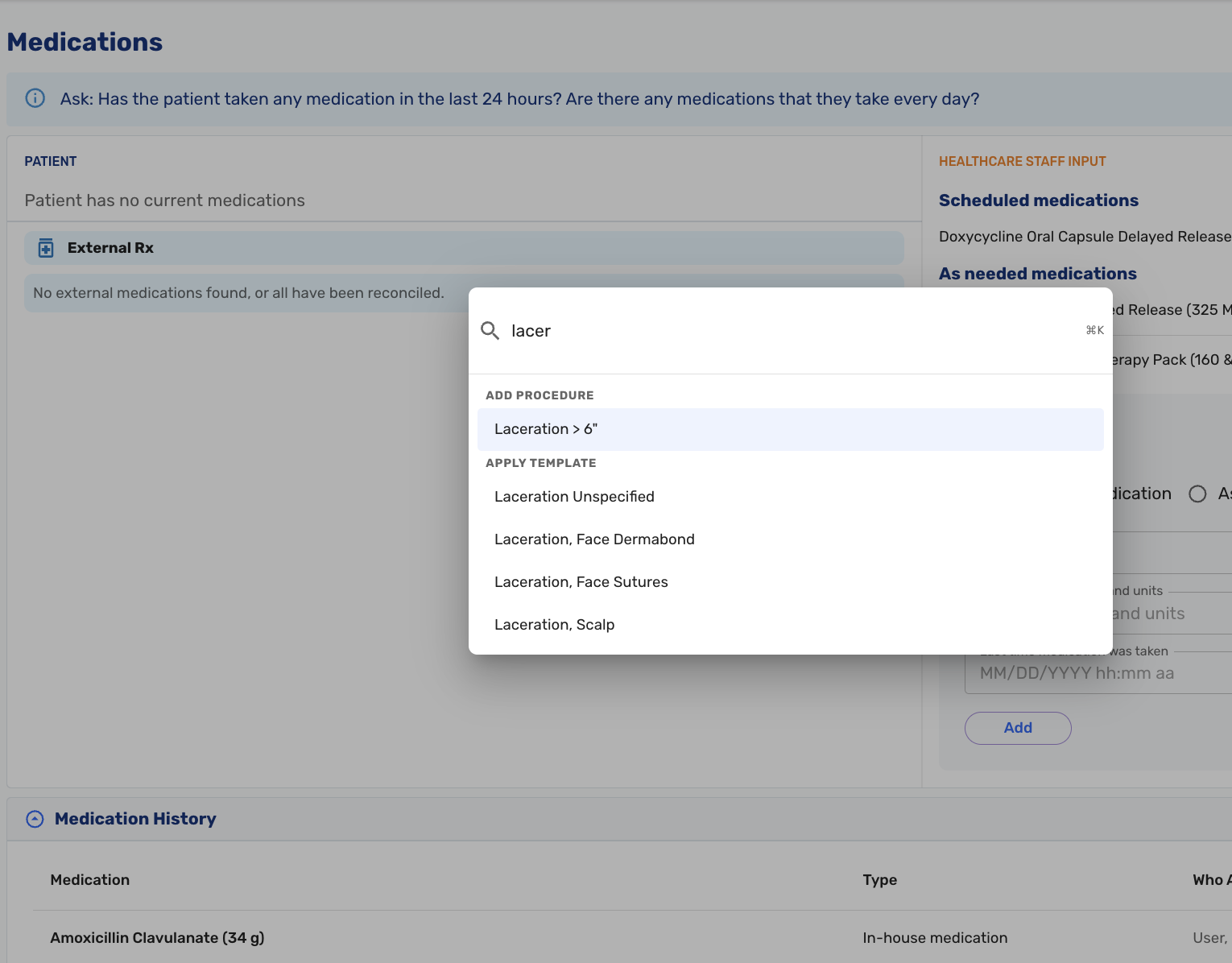
When on a page with a quick pick, apply one from any category: Allergies, Medical Conditions, Medications, In-house medications, Procedures, Immunizations, and Radiology orders.
-
When a provider selects a quick pick that belongs to a different tab (e.g., selecting "Add Allergy" while on the examination tab), the palette navigates to the correct page and then applies the quick pick automatically once the page loads.
-
Apply HPI and history templates directly to the current progress note.
-
Navigate to any page in the application, including admin pages (visible to users with the appropriate role).
-
Search for patients by name or ID. When no items match a query, the palette offers to run a patient search with the query pre-filled.
Examples
| Keys | Result |
|---|---|
⌘K | Opens the palette showing a context-aware menu of available actions, pages, and quick picks. |
⌘K → type Jane Doe | Navigates to Patient Search with first name "Jane" and last name "Doe" pre-filled and the search executed. |
⌘K → type Laceration repair | From anywhere in the progress note, finds the matching procedure quick pick, navigates to the Procedures tab if needed, and applies it. |
⌘K → type albuterol | Finds the matching in-house medication quick pick and applies it to the current progress note. |
⌘K → type schedules | Navigates directly to the Schedules page. |
Patient Merge
Overview
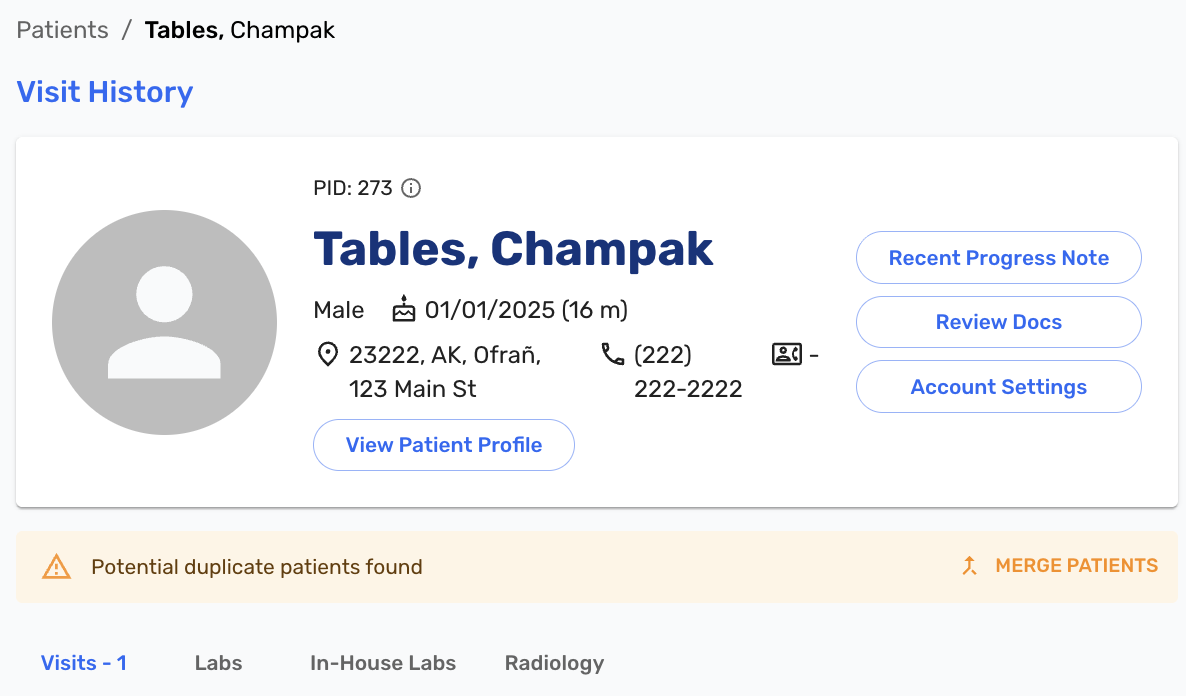
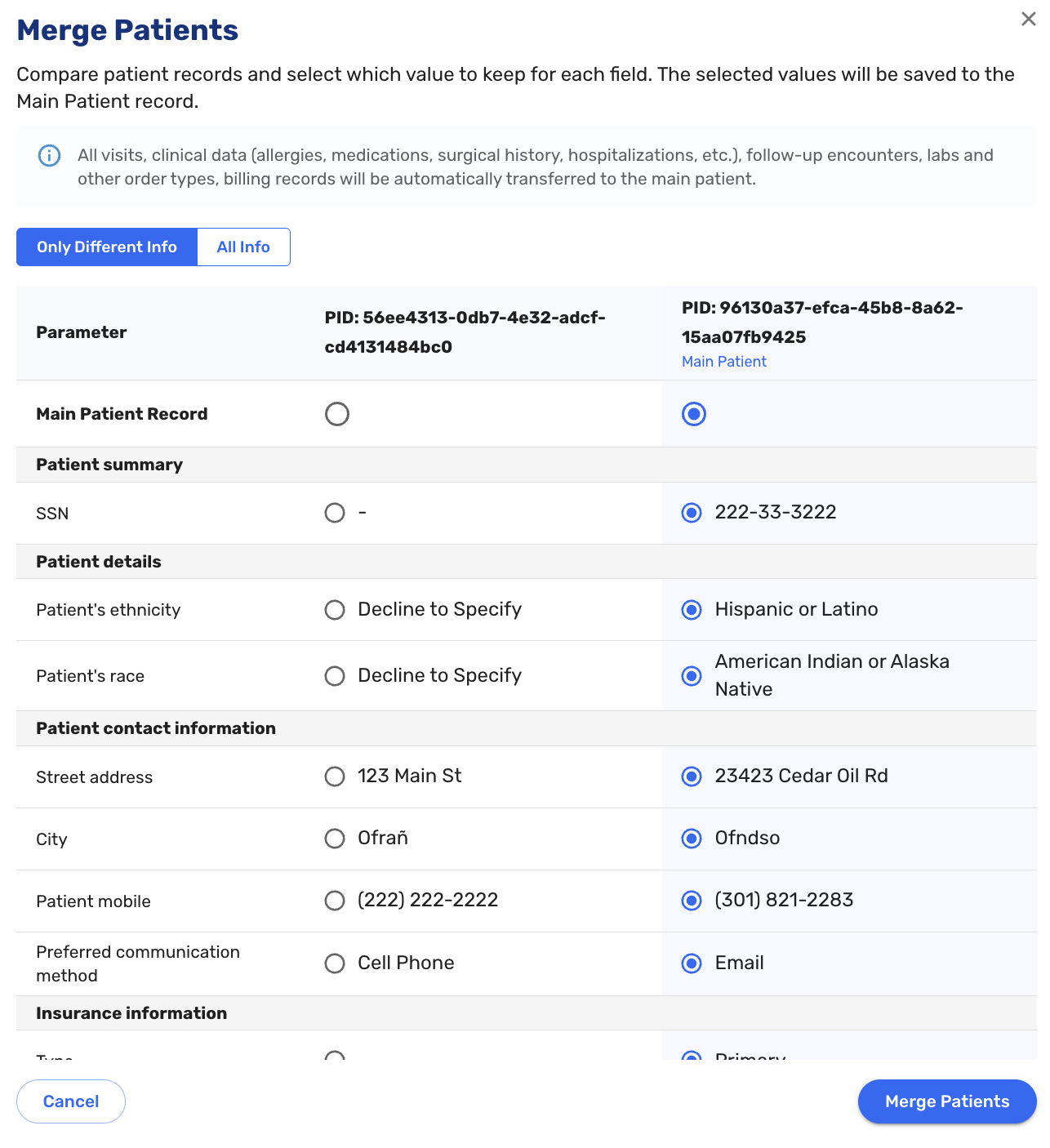
- Authorized admin and customer support users can now merge duplicate patient records directly from the patient record page. When potential duplicates are detected, a merge prompt is displayed (#1637 (opens in a new tab), #7317 (opens in a new tab)).
How Merging Works
-
Candidate patient records are flagged as possible duplicates if their First Name, Last Name, and DOB are the same.
-
The merge interface presents data from both records side by side. Staff select which values to retain in the primary record before confirming. The following data is consolidated into the merged record: visit history, documents, insurance, employer information, and lab orders.
After a Merge
- Merged patient records are removed from patient search results and from the patient app patient list, preventing new activity from being recorded against the retired record.
Scheduled Follow-up Visits
Overview
- Providers can now create scheduled follow-up visits that are associated with a prior visit and carry a full visit lifecycle: they appear on the tracking board, support all progress note modules, and are billable. Previously, the only follow-up option was a lightweight annotation follow-up with no appointment and limited charting.
Creating a Follow-up
- Scheduled follow-ups are created from the patient record or from the three-dot menu in a progress note. Staff select the parent visit, then complete a standard Add Visit flow with the patient and location pre-filled. When creating a follow-up from within an existing follow-up's progress note, the parent visit defaults to the original top-level visit. Follow-ups cannot be nested.
Tracking Board and Patient Record
- Scheduled follow-up visits appear on the tracking board like any regular visit, with a follow-up indicator next to the patient name. In the patient record, follow-ups appear indented below their parent visit alongside any annotation follow-ups. A Visit Info button provides quick access to follow-up visit details from the patient record (#7089 (opens in a new tab)).
Progress Note
- The progress note sidebar shows all encounters for the parent visit, allowing providers to switch between the original and follow-up charts in a single view. Diagnosis codes are carried over from the parent visit (#7090 (opens in a new tab)).
Clinical Documentation and Workflow
Review of Systems (ROS)
-
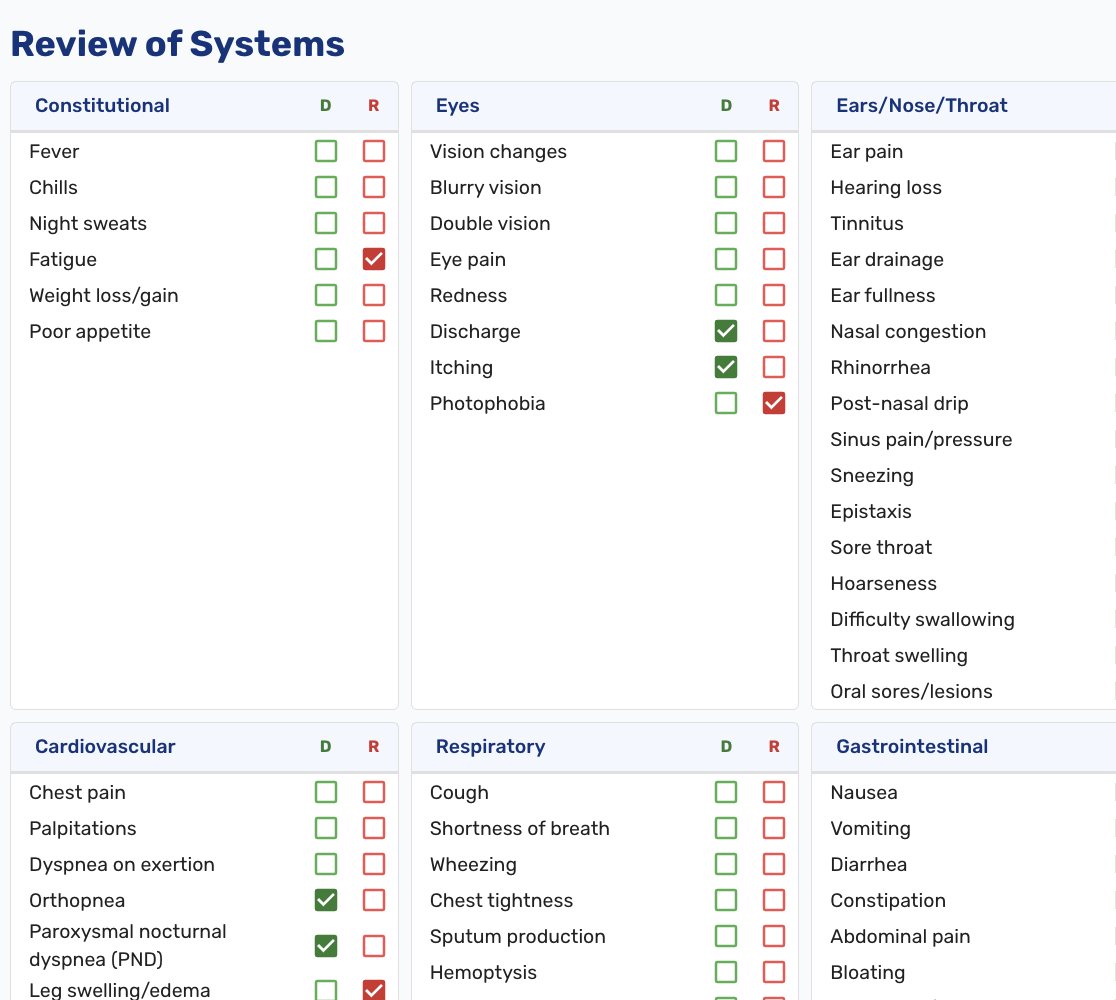
A Review of Systems module is now available in the progress note, functioning similarly to the Physical Exam module. Providers can document system-by-system review findings using the same structured interface they already use for exam documentation (#7127 (opens in a new tab)).
Exam
- Exam checkboxes now default to unchecked, giving providers a clean starting state rather than pre-populated defaults (#7164 (opens in a new tab)).
- The ROS and Exam sections received several UI refinements (#7336 (opens in a new tab)).
Patient Safety
- The "Verified patient's name and date of birth" checkbox on hyperlinked items in the progress note now defaults to unchecked, requiring providers to actively confirm verification before proceeding (#4820 (opens in a new tab)).
- Patient name and date of birth verification was added to hyperlinked warning at the top of the progress note (#3238 (opens in a new tab)).
- When a patient has refused to provide a vital sign, the "Patient Refused" status is now shown in the top navigation bar alongside other vital summary data (#7144 (opens in a new tab)).
Immunizations
- Immunization orders now include an associated diagnosis field and a manufacturer input field (#7213 (opens in a new tab)).
Patient Record
- Patient search now supports both the human-friendly patient ID introduced in Ottehr 1.32 and the full UUID, allowing staff to locate patients using either format (#6346 (opens in a new tab)).
RCM & Billing
- An invoices report CSV export is now available, allowing billing staff to download invoice data for external processing (#7207 (opens in a new tab)).
- Paper statements are now sent as first-class mail (#7340 (opens in a new tab)).
- Payment processor copay collections are no longer forwarded to the RCM system, preventing duplicate charge entries for copays already collected at the point of care (#7208 (opens in a new tab)).
- A duplicate payment entry was being recorded when a card reader was used to collect payment in certain scenarios. This has been resolved (#7322 (opens in a new tab)).
Bug Fixes
- Fixed an issue where the drug-drug interaction alert was incorrectly continuing to fire after a medication was removed from the chart (#6305 (opens in a new tab)).
- Fixed an issue where Oystehr AI was suggesting a new patient E&M code for established returning patients (#7236 (opens in a new tab)).
- Numerous other bug fixes (OTR-16 (opens in a new tab), OTR-294 (opens in a new tab), OTR-1990 (opens in a new tab), OTR-2009 (opens in a new tab), OTR-2091 (opens in a new tab), OTR-2216 (opens in a new tab), OTR-2234 (opens in a new tab), OTR-2261 (opens in a new tab), OTR-2263 (opens in a new tab), OTR-2264 (opens in a new tab), OTR-2266 (opens in a new tab), OTR-2279 (opens in a new tab), OTR-2281 (opens in a new tab), OTR-2285 (opens in a new tab), OTR-2291 (opens in a new tab), OTR-2339 (opens in a new tab), OTR-2362 (opens in a new tab), OTR-2396 (opens in a new tab), OTR-2398 (opens in a new tab), OTR-2401 (opens in a new tab), OTR-2402 (opens in a new tab), OTR-2410 (opens in a new tab), OTR-2411 (opens in a new tab), OTR-2423 (opens in a new tab), OTR-2430 (opens in a new tab)).