Changelog v1.39 - July 29, 2026
Summary
- Practices can now create and manage their own custom patient questionnaires in Admin and send them to patients directly from a visit.
- Data entered in a progress note module is no longer lost when navigating to another tab without pressing Save.
- Providers can now create radiology referral orders for external imaging facilities, with options to print, email, or fax the order for third-party fulfillment.
- An Action Logs section is now available in Admin and on each patient's profile, showing all outbound fax and email history.
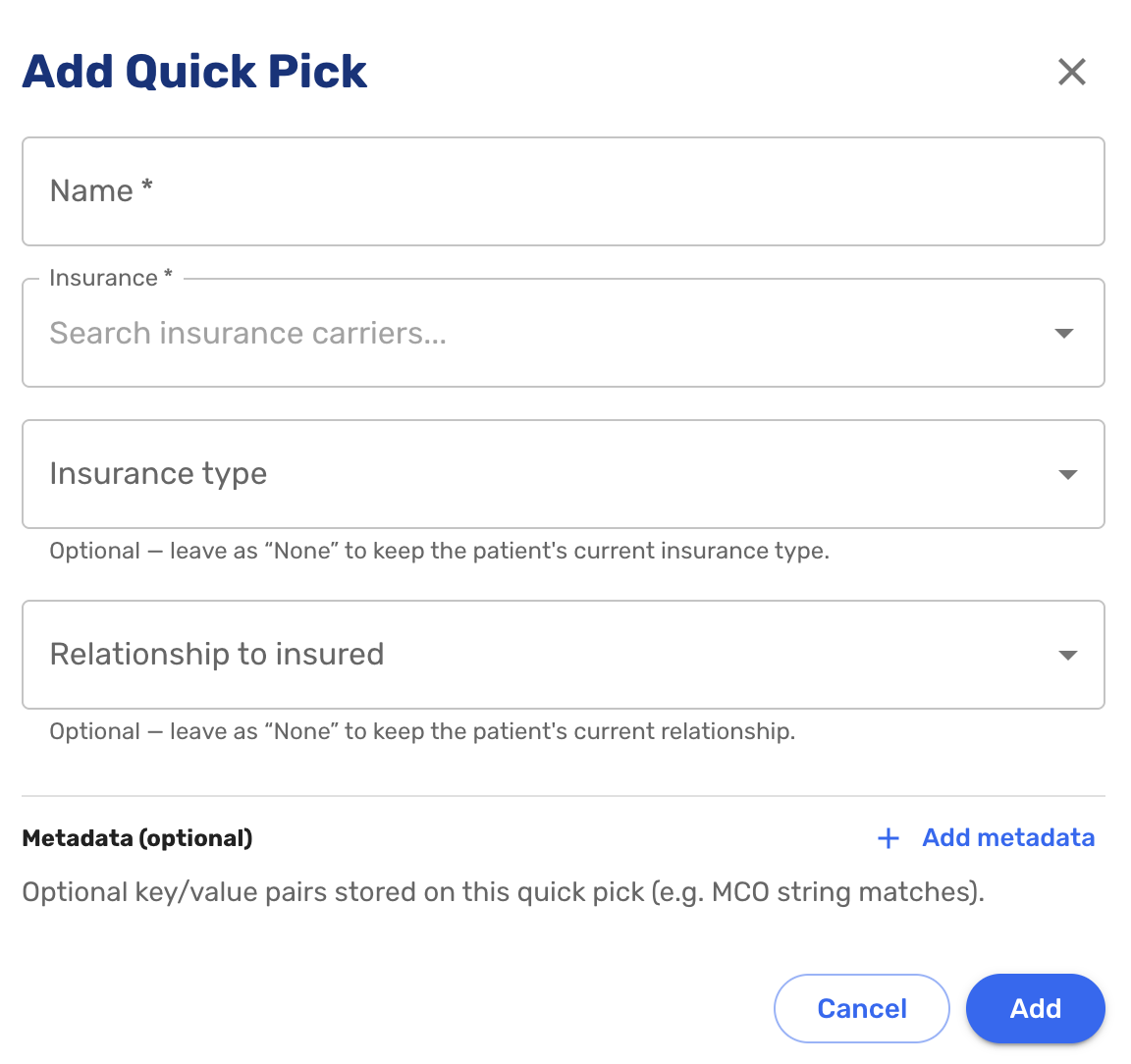
- Insurance quick picks were redesigned to pre-fill payer, insurance plan type, and relationship to insured in a single selection.
Practice Managed Forms
-
Practices can now build and manage their own custom patient questionnaires directly in the Admin section under Questionnaires. The form builder supports multiple pages, a variety of field types (text, date, checkbox, radio button, dropdown), required and optional fields, character limits, and a preview before publishing. Forms can be set active or inactive at any time (#8516 (opens in a new tab)).
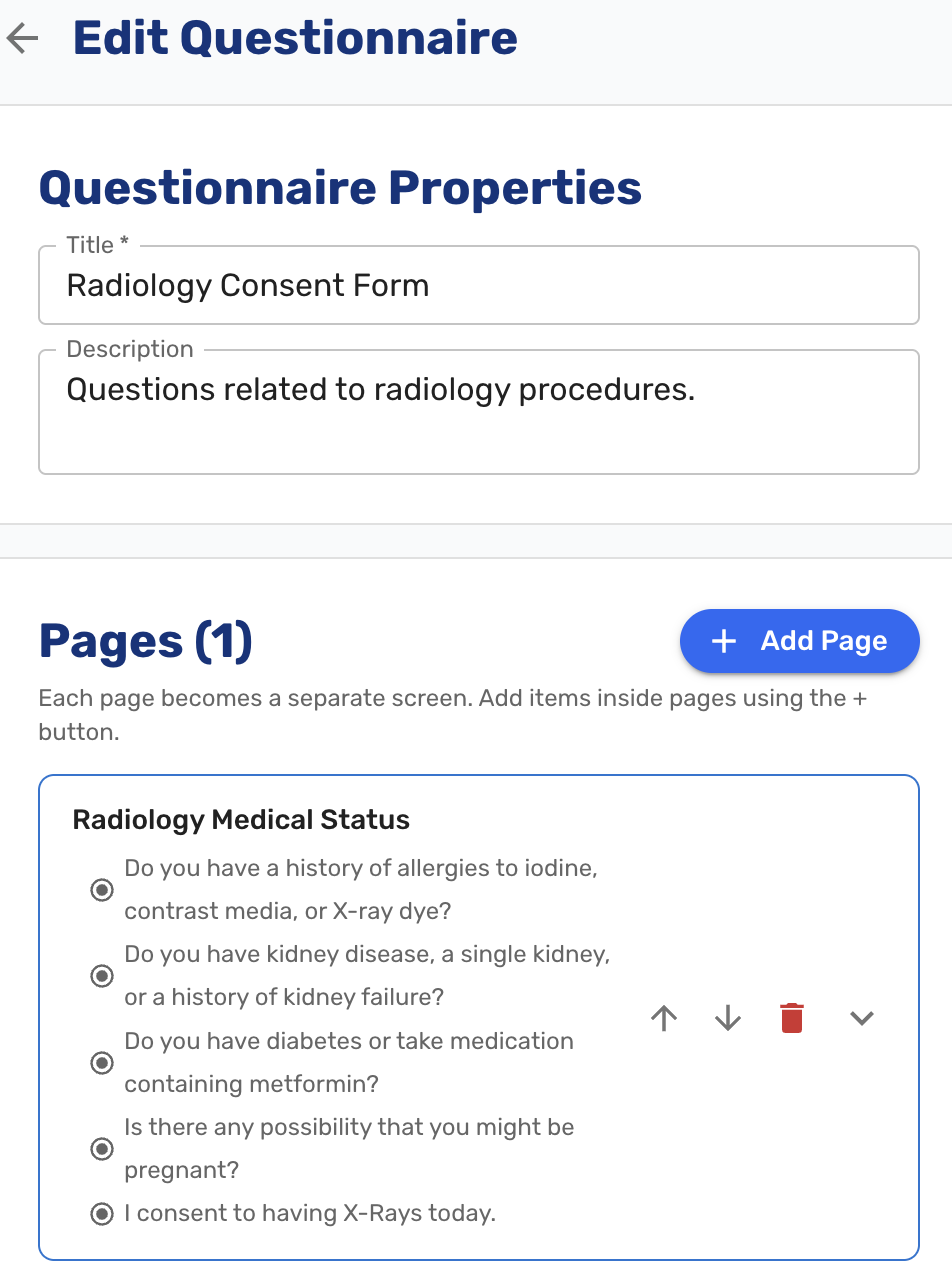
When a form is ready, staff can send it to a patient from the Visit Details screen. The patient receives an SMS with a link to complete the form through the same patient-facing flow as standard paperwork. Completed responses are viewable from the visit detail page, a PDF is filed into the patient's documents, and a staff follow-up task is created. Deactivated forms no longer appear in the Send Form to Patient list.
Progress Note: Draft Data Preserved
-
Data entered in any progress note module is now preserved when navigating to another tab without saving. Previously, a provider who entered a procedure name, nursing order detail, or HPI text and then switched to another tab lost everything silently. Even pressing the browser Back button returned a blank screen. Staff can now move between tabs freely during charting without losing work in progress (#3923 (opens in a new tab)).
If there are unsaved drafts, the note cannot be reviewed and signed and there will be a warning to make sure the draft is either deleted or saved.
External Radiology Orders
-
Providers can now create radiology referral orders within Ottehr for external imaging facilities where no integrated vendor is available. The order form captures the study type, diagnosis, ordering provider, receiving facility contact information, patient clinical details, and clinical indication. A PDF is generated from the order and can be printed, emailed, or faxed directly from the order detail screen for fulfillment by the receiving facility. External orders appear on the radiology list with an "External" label to distinguish them from integrated orders (#8504 (opens in a new tab)).
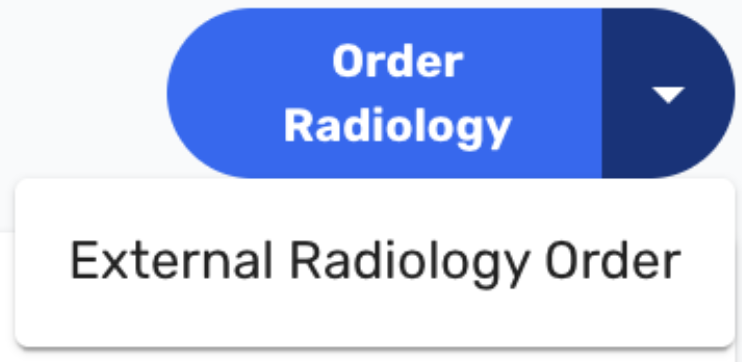
For this option, select the 'External Radiology Order' option from the dropdown on the 'Order Radiology' button.
Fax and Email Action Logs
-
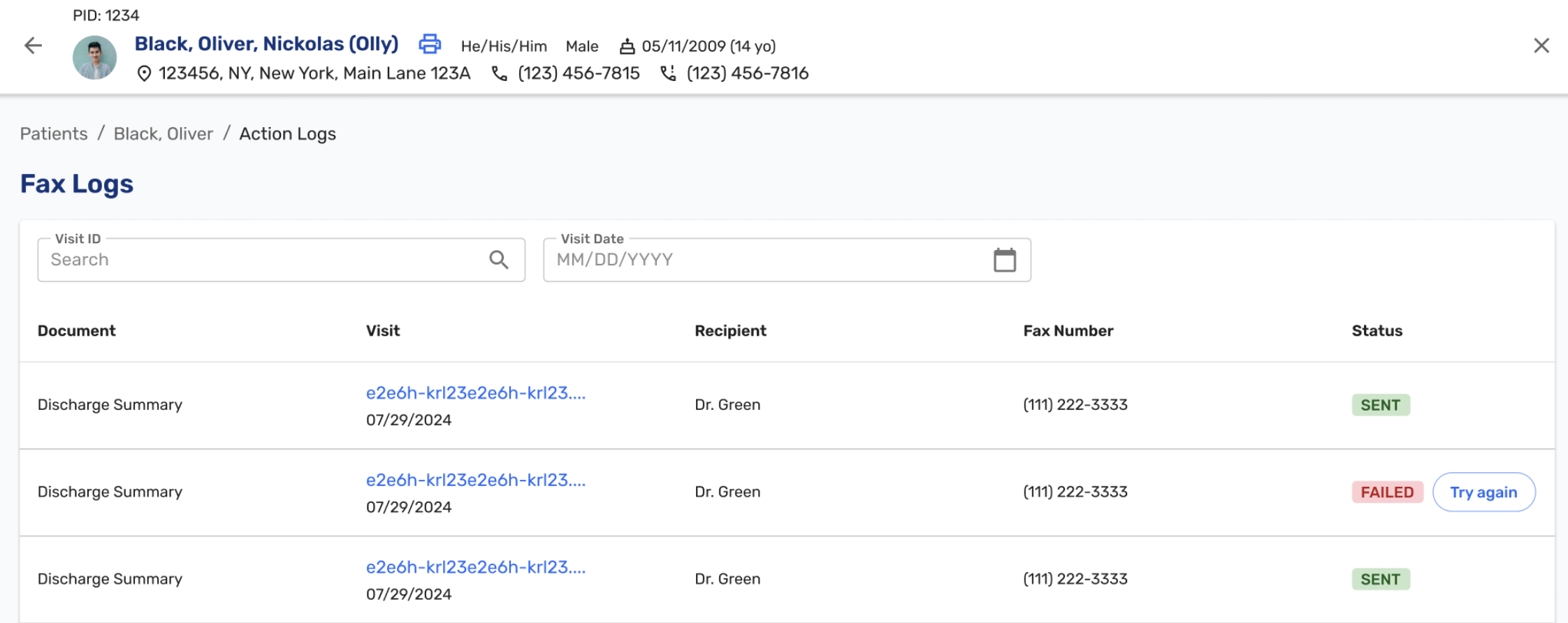
An Action Logs section was added to the Admin panel, giving staff a single view of all outbound fax and email attempts across all patients. The log shows visit ID, visit date, patient name, recipient, and delivery status. Failed entries include a "Try again" button that resends to the original recipient. The log is searchable by patient name, visit ID, or date, shows up to 10 entries per page, and retains history for 30 days (#1556 (opens in a new tab)).
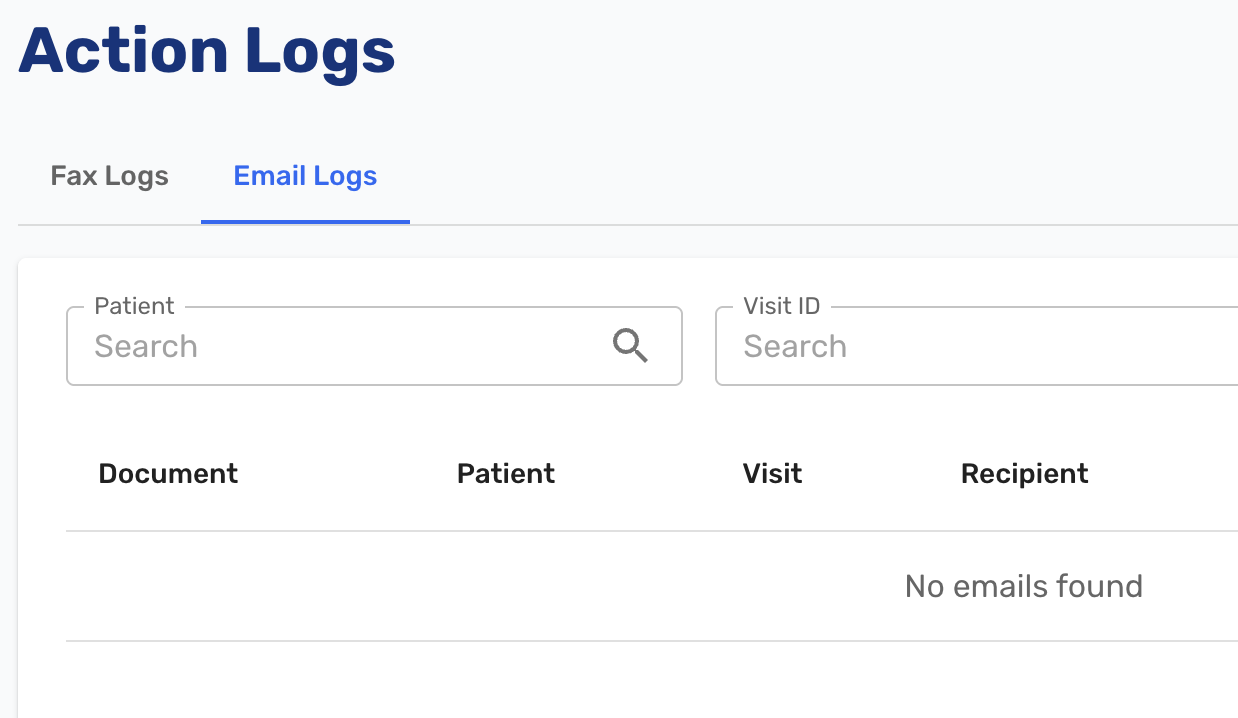
An Action Logs button was also added to each patient's profile. Clicking it opens a dedicated page showing the full fax and email history for that patient only. Currently the page shows a Fax Logs tab; additional log types may be added in future releases.
Insurance Quick Picks
-
Insurance quick picks were redesigned to do more than select a carrier. Each quick pick now pre-fills the payer, insurance plan type (such as PPO, HMO, or Medicaid), and the patient's relationship to the insured. Staff can apply a single quick pick and have all three fields populated at once, reducing the number of manual selections during registration and improving accuracy to reduce insurance issues (#8791 (opens in a new tab)).
Progress Note PDF
- For notes that required supervisor approval, the Progress Note PDF now includes a second signature line: "Approved by [Provider] on [date] [time]." The provider's own signature line was added in v1.38 (#7903 (opens in a new tab)).
Tracking Board
-
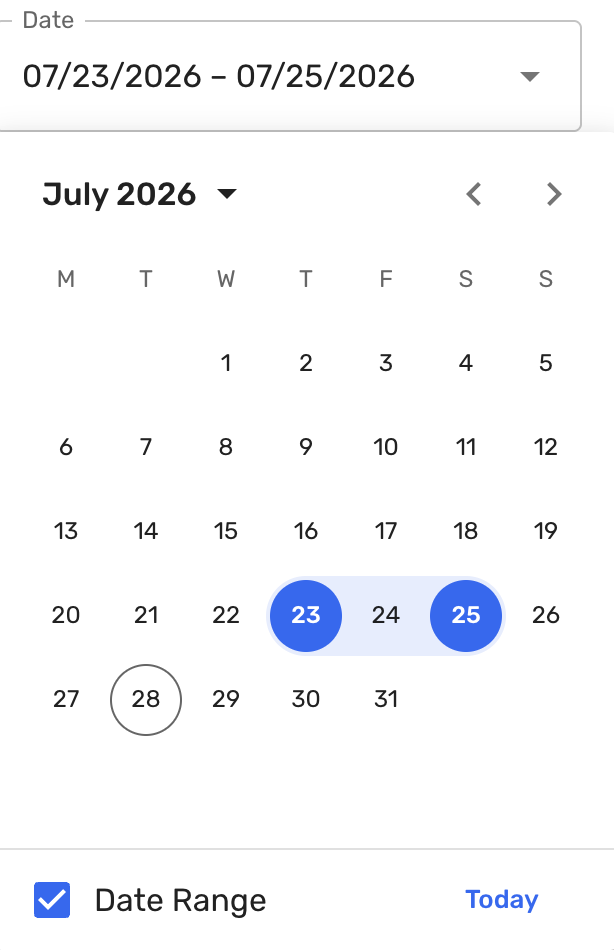
The tracking board date filter was redesigned to address two issues introduced with the date range feature in v1.37: switching between single dates now requires fewer clicks, and the board reloads noticeably faster when the date selection changes (#8567 (opens in a new tab)).
Administration
- When a new self-service configuration feature is introduced, Ottehr now seeds it with sensible defaults so practices don't start from a blank configuration. Previously, newly available admin sections were empty until each practice manually populated them.
Group Scheduling
- A group that supports both in-person and virtual service modes can no longer be linked to a schedule at a location that doesn't support one of those modes. The system now validates the combination at the group configuration stage and prevents the incompatible linkage.
Bug Fixes
- Fixed an issue where a patient's email address was being erased when a new visit was created for the same patient via the EHR Add Visit flow (#8751 (opens in a new tab)).
- Fixed an issue where charging a credit card was creating duplicate and triplicate payment records in Ottehr. The patient was charged only once, but the internal records were incorrect (#8828 (opens in a new tab)).
- Fixed an issue where Workers Comp insurance was not being sent to the RCM system for WC visits when no general insurance was on file (#8427 (opens in a new tab)).
- Fixed an issue where the ambient scribe recording stopped and was not saved when the phone was rotated during a visit (#8584 (opens in a new tab)).
- Fixed an issue where in-house lab specimen collection returned a 500 error when submitting results for the Alcohol Confirmation Test (#8839 (opens in a new tab)).
- Numerous other bug fixes (#918 (opens in a new tab), #1920 (opens in a new tab), #2101 (opens in a new tab), #2200 (opens in a new tab), #2815 (opens in a new tab), #3066 (opens in a new tab), #3383 (opens in a new tab), #8456 (opens in a new tab), #8464 (opens in a new tab), #8484 (opens in a new tab), #8553 (opens in a new tab), #8578 (opens in a new tab), #8606 (opens in a new tab), #8607 (opens in a new tab), #8614 (opens in a new tab), #8803 (opens in a new tab)).