Changelog v1.40 - August 12, 2026
Summary
- An AI assisted report builder lets admins describe a report in plain English and have Ottehr build the chart or table on the spot. Released as a beta feature, available to the Admin role.
- Outbound faxing to a patient's PCP was substantially expanded. A fax can now be sent from anywhere in the encounter and includes the full visit packet rather than just the progress note.
- Inbound faxes now arrive as tasks in the EHR, where staff can review each one and file it directly into a patient's chart.
- Optical Character Recognition (OCR) now reads patient photo ID cards and insurance cards, surfacing suggested values that staff and patients can accept with a click.
- A new Clinician role gives nurses and medical assistants appropriate access without the NPI-gated actions that only providers should perform.
- Providers can now blur or replace their background during virtual visits.
AI Assisted Report Builder
-
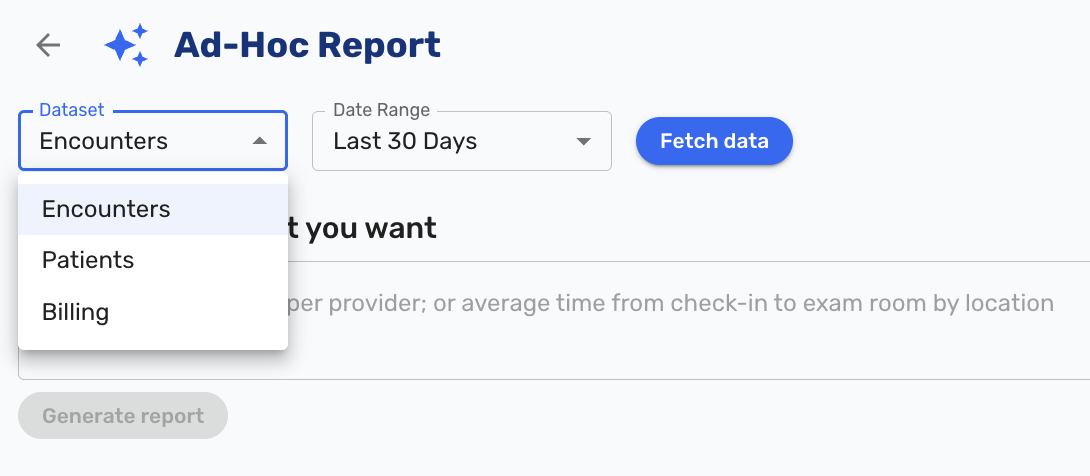
Practice Admins can now interactively build their own reports by describing what they want in plain English, instead of requesting a report and waiting for it to be built by the Ottehr development team. A user picks a data source, types a request like "average visit duration by location this quarter," and Ottehr generates a chart, a table, or a single headline number on the spot (#8034 (opens in a new tab)).

Three data sources are available at launch: Encounters, Patients, and Billing. Ottehr works out which additional detail a request needs, such as clinical codes, visit timing, medications, insurance, or payments, and loads only that. If a report turns out to need data that was not initially loaded, it is pulled in and the report regenerates automatically. Users never have to know what data exists or tick boxes to include it.
A report can be refined conversationally. Follow-up instructions like "make it a pie chart," "break it down by month," or "show provider names instead of emails" update the report in place. Tables can be sorted, filtered, and exported to CSV (#9034 (opens in a new tab)). Clicking a chart segment or a table row drills into the detail behind it, with links out to the related patient record or visit note that open in a new tab. Time periods can be changed at any point to refresh the numbers.
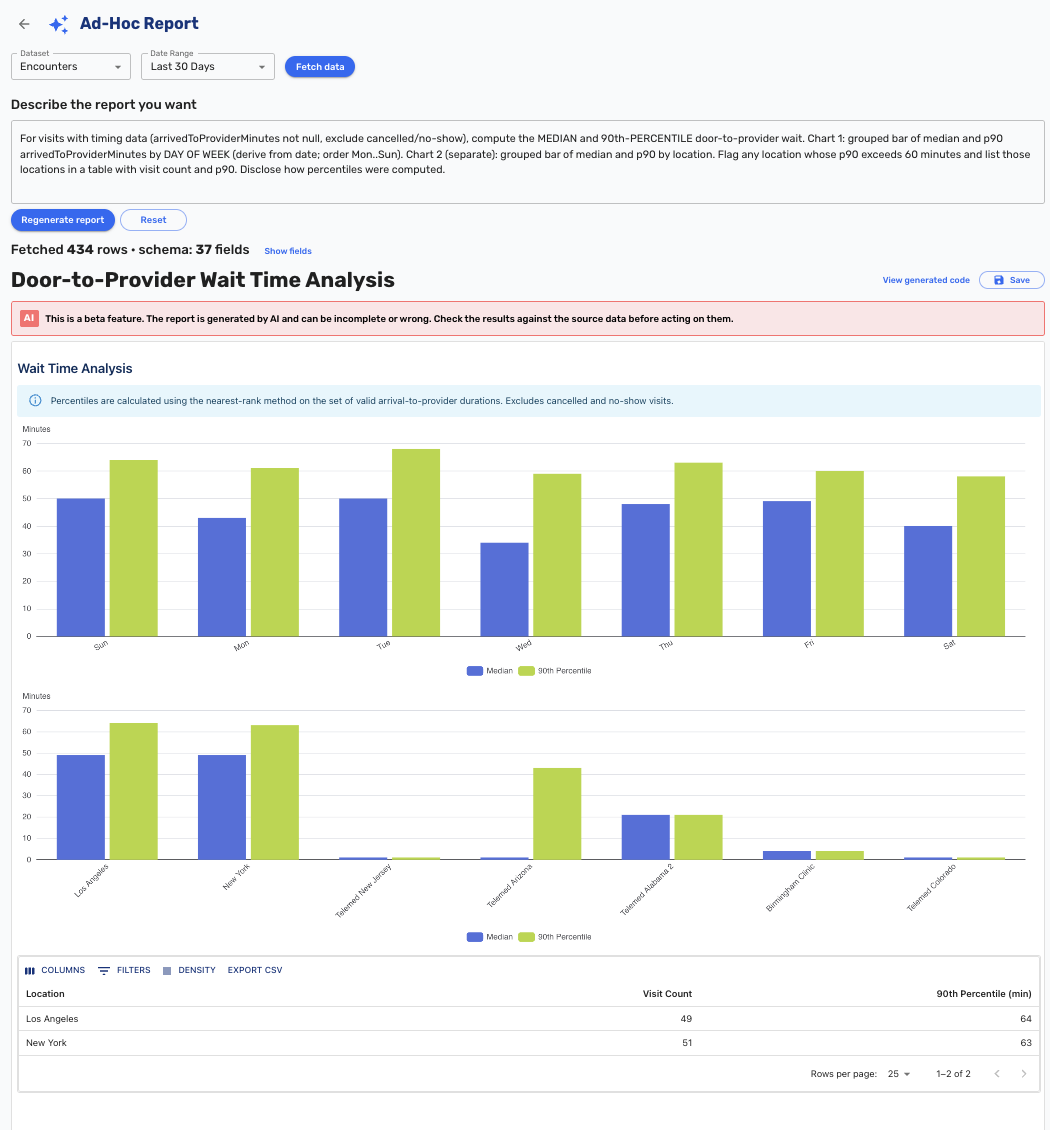
Reports can be saved with a name and a short description, which turns them into reusable tiles. Saved reports are shared across the practice's Admin users, and they re-fetch live data for their time period each time they are opened, so the numbers stay current rather than showing a frozen snapshot.
Two points worth knowing. Patient data is never sent to the AI. Only the structure of the data, meaning column names and the kinds of values present, is used to build the report, and the report itself runs in a sandbox over data that stays in the browser. Reports also do not invent numbers: if a requested metric is not available, the report says so and points to where the data lives rather than guessing.
This is not a live dashboard. Each report is a single chart or table for one chosen time period, not a screen with global filters or tabs that update several visuals at once. It can also only report on data the practice already records, so a metric that is not being captured today cannot be reported on until that information starts being collected.
The feature is available to the Admin role and is labeled in the interface as "BETA Feature: Double-check AI-generated results" (#9035 (opens in a new tab)).
Outbound Faxing to the Patient's PCP
-
Faxing a visit to a patient's primary care provider was substantially expanded. Previously the only way to fax was a single button on the Review & Sign screen, it was only available once the progress note had been signed, and it sent the progress note by itself (#8706 (opens in a new tab)).
Faxing now lives in the three-dot menu and is available from anywhere in the encounter, regardless of whether the note has been signed yet. The transmission includes the full visit packet: the progress note, lab results, radiology results, the visit note, patient instructions, prescriptions, and patient education materials.
When Fax Progress Note is selected, Ottehr presents the PCP's name and fax number if they are already on file from patient paperwork or the patient profile. If they are not on file, staff can enter them manually, and a manually entered PCP is saved back to the patient profile for future use.
Every fax generates a cover sheet. It includes the recipient's name and credentials, organization, fax number, phone number, and the page count including the cover. It carries the standard HIPAA confidentiality statement. It includes sender details covering name and credentials, NPI where applicable, organization name, location address, and organization phone and fax. The subject line carries the patient name, patient ID, visit type, date of service, and visit ID.
The old fax button on the Review & Sign screen has been removed.
Inbound Fax Support
-
If you have outbound faxing configured, Ottehr can now receive inbound faxes at that number and turn each one into an actionable work item. Faxes are picked up automatically on arrival with no staff action needed, and Ottehr captures the sender's fax number, page count, received date and time, and the fax PDF itself. If the sender or page count cannot be determined, the fax still comes through and shows as unknown. Reception is protected against duplicates, so a retried delivery never produces two work items (#6311 (opens in a new tab)).
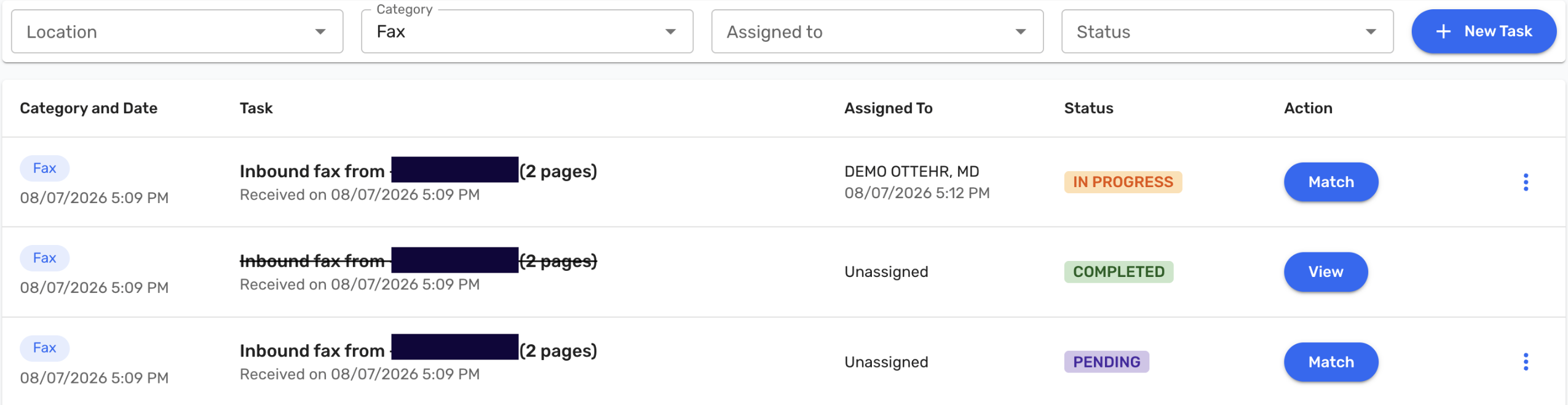
Each inbound fax appears on the Tasks page titled "Inbound fax from [sender] ([n] pages)" with a subtitle showing when it arrived, always in the viewer's local timezone. Fax tasks have their own Fax category and the category filter includes a Fax option. Because fax tasks are not tied to a location, a location filter never hides them.
Opening a fax presents a two panel screen with the fax PDF on the left and the matching workflow on the right. Staff search for and confirm the patient the fax belongs to, choose one of that patient's document folders, and name the document, which is pre-filled as "Fax from [sender]" and can be edited. Saving files the fax into that folder as a named PDF, exactly as it would appear if uploaded on the patient's documents page.
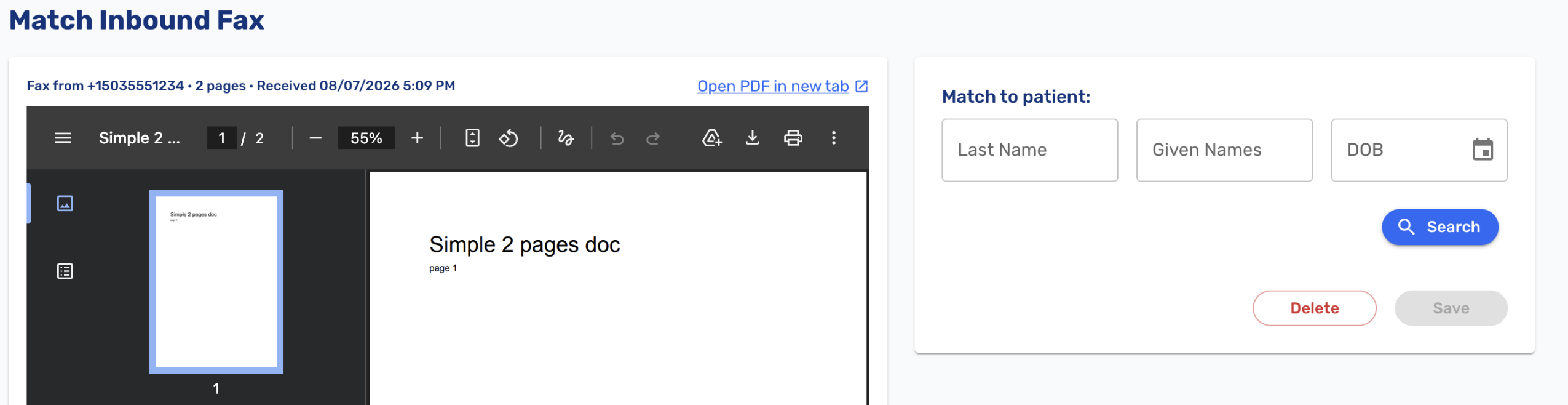
A few safeguards are worth noting. A fax cannot be filed unless its preview has actually loaded, so staff cannot file a document they have not been able to see. Filing either fully succeeds or leaves everything unchanged, and Ottehr independently verifies that the chosen folder really belongs to the chosen patient so a fax cannot be filed into the wrong chart or filed twice. Deleting is never one click: a confirmation dialog states exactly what will be destroyed before anything happens.
Filed faxes stay in the task list with a read-only View button so staff can always get back to the document. Only deleted faxes leave the list.
Optical Character Recognition (OCR) for Photo ID Cards
-
Ottehr now reads patient photo ID cards and uses the extracted values to validate what the patient submitted. On the Visit Details screen, a suggestion appears beside a field only when the extracted value does not match what was entered, or when the field is empty. If the data already matches, nothing is displayed. Staff accept a suggestion with a single click to populate the field, the same way Oystehr AI suggestions work elsewhere in the chart. If OCR attempted to read a field and came back empty, Ottehr displays "Could not extract from card" beside that field rather than leaving staff to guess whether it tried (#7971 (opens in a new tab)).
From a photo ID, Ottehr extracts first name, middle name, last name, date of birth, birth sex, street address, city, state, and ZIP code. OCR capability will be improved over time.
Two limitations are worth knowing: address line 2 is not extracted, and nine-digit ZIP codes may not populate correctly in paperwork.
Optical Character Recognition (OCR) for Insurance Cards
-
Insurance card OCR works the same way and applies in two places (#7797 (opens in a new tab)).
In patient paperwork, the insurance card upload was moved above the insurance information fields, so patients now upload the card first and then see the fields. OCR runs on the front image only, since the back carries nothing Ottehr currently surfaces. Extracted values appear as suggestion chips next to each field that the patient taps to accept. Nothing is filled in silently. Where a carrier name matches more than one payer in the directory, the patient is shown a short list of candidates rather than a single guess. If a patient uploads no front image, the form simply stays blank for manual entry, and an OCR failure never blocks a patient from completing or submitting their paperwork.
On the Visit Details screen, staff see the same mismatch-based suggestions described above for photo IDs. If staff upload a card image when the insurance fields have already been filled in, Ottehr asks whether to override the existing information with the card values, keep what is already there, or cancel the upload so they can compare first.
From an insurance card, Ottehr extracts the carrier, insurance type where the card carries it, member ID, and the policy holder's first, middle, and last name. Not every card includes insurance type, so that field will often come back empty.
-
Card images are now compressed before upload, capped at 2000 pixels on the longest side, so cards load quickly regardless of how the original photo was taken. This applies to both insurance cards and photo IDs. Insurance card uploads are also checked for orientation, and a warning appears when a card looks rotated. Correcting it is a manual step: staff click a "Rotate 90° clockwise" button until the card is upright (#8566 (opens in a new tab)).
Clinician Role
-
A new Clinician role is now available. Until now there was no role specifically for nurses and medical assistants. Provider role was the only role for all medical staff. Doing so granted clinical staff access to actions that require an NPI and that only a credentialed provider should perform (#7427 (opens in a new tab)).
The Clinician role grants full Provider access in the EHR with the exception of NPI-gated actions. Clinicians cannot sign or co-sign a clinical note, e-prescribe, or submit claims under a provider NPI. They can order external labs and radiology on behalf of the attending Provider. They can order in-house labs, in-house medications, and nursing orders, document procedures, and complete full documentation across HPI, MOI, exam, assessment, and plan, right up to but not including signing. If a Clinician attempts an NPI-gated action, including by navigating directly to the URL, Ottehr returns a permissions error.
The role is assignable only by an Admin, in the same way other roles are assigned. The existing Provider role and all other roles are unchanged. Practices currently using Provider as a workaround for nursing and MA staff will want to review those assignments and move them to Clinician.
Virtual Visits
-
Providers can now control what appears behind them during a virtual visit. Two options are available: blur the background, or upload a custom image from their device to use as a background. A blur toggle sits directly in the video player action bar for quick access, and both options are available in the call settings (#7969 (opens in a new tab)).
Background settings can be changed before joining a call or at any point during an active call without interrupting the session, and the selected background persists for the duration of the call. The controls are available to providers only.
Visit Details
- Photo ID and insurance card images now appear inside the sections they relate to rather than at the top of the Visit Details page. The photo ID sits at the top of the About the Patient block, and each insurance card sits at the top of its corresponding insurance section, so a primary card appears with primary insurance and a secondary card with secondary insurance. Clicking an image opens an enlarged view. Previously staff had to scroll back and forth between the images and the fields they were verifying (#7814 (opens in a new tab)).
- Insurance quick picks on the Visit Details page now display by their customized display name rather than the payer name (#8478 (opens in a new tab)).
Radiology
-
A diagnosis code is no longer required to place a radiology order. Providers can order the study first and record the diagnosis later, when saving the preliminary read (#6578 (opens in a new tab)).
-
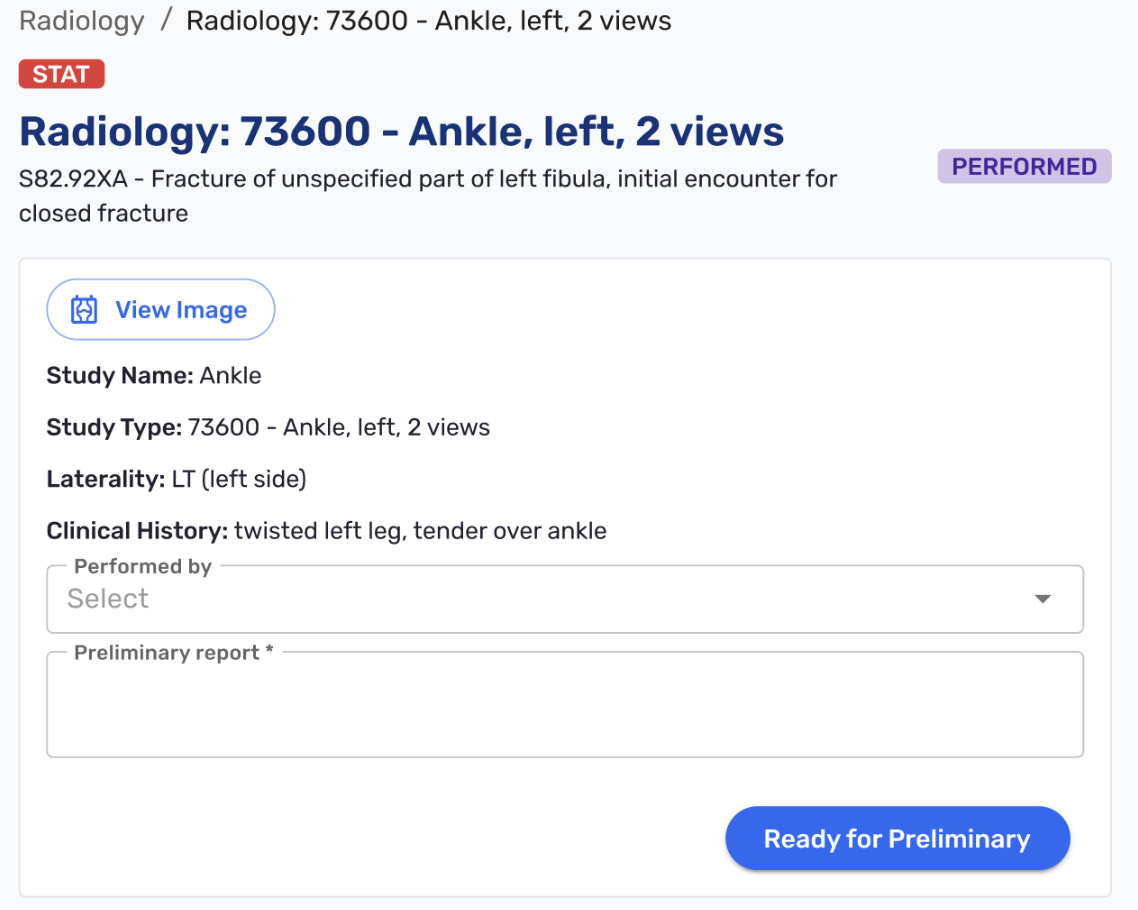
A "Performed by" dropdown was added to radiology orders so practices can log who performed the study, mirroring the "Collected by" field already used for in-house labs. It is selectable while the order is in Performed status and read-only thereafter, and it appears in the progress note and the visit note PDF (#8571 (opens in a new tab)).
-
The Order column in the radiology table now names the provider assigned to the encounter rather than whoever clicked Order. Nurses frequently place orders on a physician's behalf, and the order should still be attributed to the physician. The PDFs already behaved this way (#8912 (opens in a new tab)).
-
External radiology orders no longer appear in Payment Considerations. Because the patient is having the study done elsewhere, the practice should not be billing for it (#8942 (opens in a new tab)).
-
Pending radiology orders now show "Pending results" in the visit note and discharge summary PDFs, matching how in-house labs already behave (#8406 (opens in a new tab)), and the CPT code now appears before the study name in the progress note so it reads consistently with the PDFs (#8407 (opens in a new tab)).
External Radiology Orders
- Creating an external radiology order now generates the printable PDF as part of the same action, so staff no longer have to place the order and then click Print separately. A Print Order button remains on the created order for making additional copies later (#8817 (opens in a new tab)).
- Result uploads on an external radiology order are now restricted to PDF files, with a validation message if another file type is selected (#8805 (opens in a new tab)).
- The study name no longer appears on the printed external radiology order (#8807 (opens in a new tab)).
External Lab Orders
- The specimen received date and time now appears on external lab result PDFs (#8950 (opens in a new tab)).
Patient Records
- Visit Details PDFs are now included when a complete medical record is requested. Previously the export only picked up PDFs that already existed in the patient's documents, so any visit where staff had not manually generated a Visit Details PDF was missing from the record. A Visit Details PDF is now generated automatically for every visit when the encounter is completed (#8488 (opens in a new tab)).
Access and Permissions
- The Staff role now has read and search access over medication records, which it needs to use the in-house medications feature (#8984 (opens in a new tab)).
RCM & Billing
- Taking a credit card payment no longer fails silently when a patient's email address is malformed. Invalid email addresses are now flagged, and if the payment processor rejects the account for that reason, the error is surfaced in the interface with an explanation so staff can correct the address and take the payment (#7319 (opens in a new tab)).
Bug Fixes
- Fixed an issue where in-house medications that failed an interaction check displayed no result at all. Affected medications now show the "Interaction check failed. Please review manually" message rather than appearing to have passed (#8454 (opens in a new tab)).
- Fixed an issue where reflex lab test results were displayed in UTC rather than the timezone of the appointment (#9065 (opens in a new tab)).
- Fixed an issue where providers with the "Phone and computer" notification method selected received two SMS messages for each telemed notification instead of one (#8864 (opens in a new tab)).
- Fixed an issue where a generated patient education PDF was not filed into the Patient Education folder, appearing only in the All Documents list (#8315 (opens in a new tab)).
- Fixed an issue where the Last Menstrual Period date and Unsure checkbox were not cleared after saving via Add All Vitals, which caused a false "Draft Vitals" alert on the progress note (#8886 (opens in a new tab)).
- Numerous other bug fixes (#7899 (opens in a new tab), #7989 (opens in a new tab), #8458 (opens in a new tab), #8466 (opens in a new tab), #8573 (opens in a new tab), #8629 (opens in a new tab), #8865 (opens in a new tab), #8967 (opens in a new tab)).