Changelog v1.43 - September 23, 2026
Summary
- Practices can upload their own PDF forms and map the fields to Ottehr data, so that the form partially prefills itself for the encounter. The PDF can then be edited, attached to the chart, and faxed.
- The procedure form now adapts to the procedure being documented. Ottehr also suggests the CPT code the current documentation supports while alerting the provider to any missing information that an auditor would still want to see for that code.
- Vital normal ranges and alert thresholds are now Administrator configurable by age group.
- Providers can build a personal library of reusable text snippets (i.e. 'Dot Phrases') and drop them into any charting field from the command palette.
- A visit created as a standalone appointment can now be converted into a scheduled follow-up.
- Photo ID scanning no longer suggests a patient's name when the ID belongs to a parent or guardian rather than the patient.
Self-Service PDF Forms
-
Practices can now upload their own PDF forms and configure them to prefill key fields from patient/encounter data. An administrator uploads a PDF, maps its fields to the corresponding data in Ottehr, and the form then appears in the Forms list on the Plan section of the chart (#7460 (opens in a new tab)).
When a provider selects the form for a patient's encounter, the mapped fields pre-populate automatically from that visit's data. The populated form remains editable, so anything that needs adjusting can be changed before it goes out. Once complete it can be attached to the visit and faxed like any other document.
Procedure Documentation and Coding Assistance
-
The procedure form now reconfigures itself to reflect the procedure being documented. Selecting a procedure type reveals fields specific to the procedure, so a laceration repair asks for wound size and repair depth while an incision and drainage asks for incision start and stop times. Providers document the specifics that matter for that procedure instead of working around a single generic form, and those specifics are what the coding assistance then reads (#9049 (opens in a new tab)).
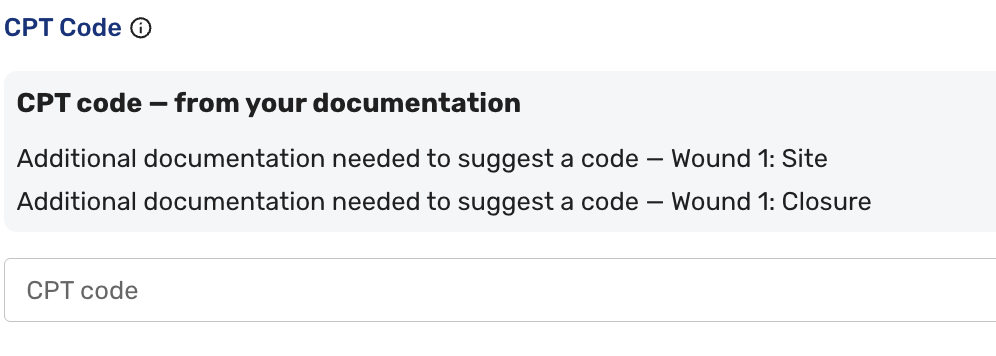
Procedure Coding Advice Eleven procedure families have their own fields: laceration repair, incision and drainage, splinting and strapping, foreign-body removal, impacted cerumen removal, therapeutic injections and IV hydration, diagnostic EKG, burn treatment, wart and lesion destruction, urinary catheterization, and nasal packing. Anything not captured in a dedicated field is read from the existing fields and the narrative text, including common clinical shorthand. Whatever is captured carries through the progress note, follow-up notes, the visit note and discharge summary PDFs, quick picks, and global templates.
Ottehr also provides additional assistance on the procedure page.
-
Code Suggestion works out which CPT code the current documentation actually supports and presents it first, with a plain-English reason. A laceration entry might read "Intermediate repair, layered closure, hand, 3.2 cm, 12042." Adding it takes one click. When the documentation required by the code is not all present, Ottehr informs the provider what is missing.
-
Documentation Defense evaluates every selected code against the note in three ways:
- Missing means an element the code requires is not documented, and Ottehr names the exact place to put it with a short example.
- Contradiction means the note actively conflicts with the code, such as noting that irrigation alone does not qualify for 69210.
- Supported is a green confirmation that the documentation fully backs the code.
When a selected code does not match the documented answers, the message describes the specific problem rather than listing every possibility, so a mismatch reads as "The answers support 12001 instead" or "The answers support 5 units of 10160; 1 unit selected" (#9702 (opens in a new tab)).
The feature is advisory: nothing is added, changed, or blocked without the provider acting, and saving is never interrupted. Suggestions only reflect what the provider has actually documented, and are phrased as completeness coaching rather than as a suggestion to choose a higher code. Anything outside the covered rules is labeled "not assessed" rather than guessed at.
Suggestions are also consistent: the same documentation always produces the same recommendation, so providers and billers can rely on what they see rather than working around variation.
-
Configurable Vital Ranges and Alerts
-
Vital normal ranges and the abnormal and critical alert thresholds were previously fixed at deployment. They are now configurable in Admin under General -> Progress Note -> Vitals, in a new section called Vital: Normal Ranges & Alerts (#9022 (opens in a new tab)).
An administrator can define up to fifteen age groups and, for each group, set the normal range, the abnormal high and low values, and the critical high and low values. Seven vitals are covered: weight, height, temperature, heart rate, respiratory rate, blood pressure, and SpO2.
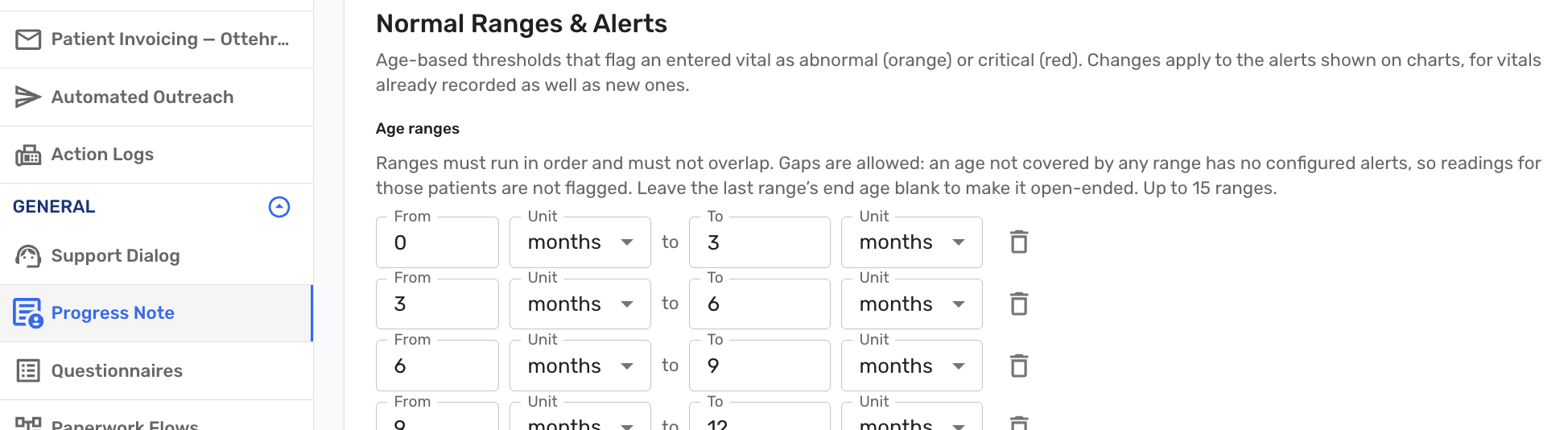
Vital Range Configuration This builds on the two-level caution and critical alerts introduced in v1.35. Medical guidance on vital thresholds varies and is often adjusted locally, so those values can now follow whatever protocol is in use rather than a single fixed set.
Dot Phrases
-
Providers can now keep a personal library of reusable text snippets and insert them into any charting field without leaving the keyboard. This works the way dot phrases do in other applications, delivered through the existing command palette rather than a separate screen (#9550 (opens in a new tab)).
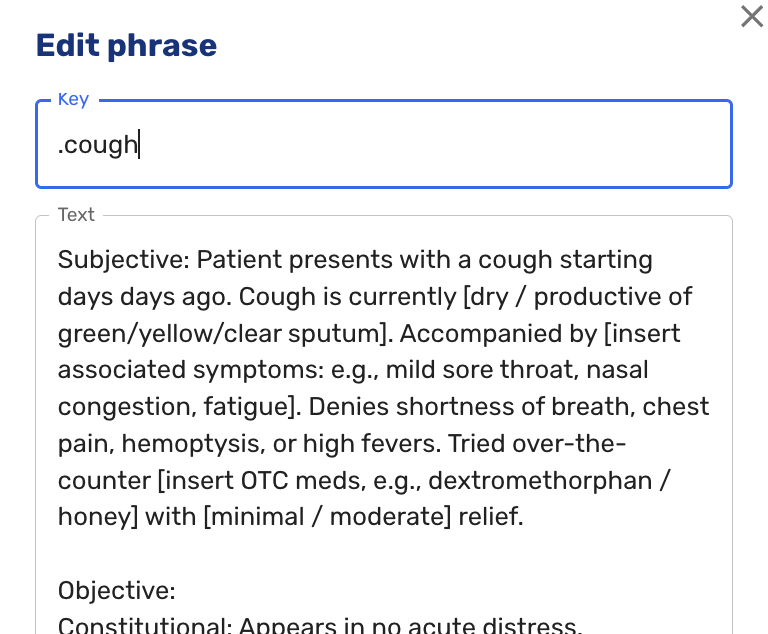
Adding a Dot Phrase A phrase is a short name and the text it stands for. To use one, place the cursor in a text field, open the command palette with Cmd+K or Ctrl+K, and type part of the name or the text itself. The phrase is inserted at the cursor and can be undone like anything typed by hand. Phrases are created, edited, and deleted from the same place in the palette, and they belong to the individual user rather than being shared.
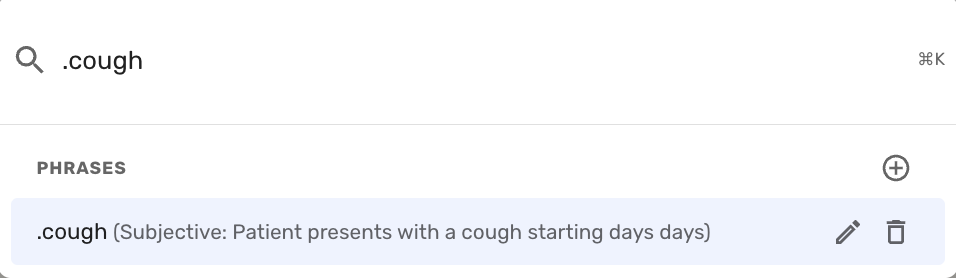
Using a Dot Phrase This speeds up documentation by providing a quick way to enter repetitive text. A normal exam narrative, a standard discharge instruction, or any block of text typed several times a day becomes a few keystrokes instead.
A few things are not part of this version: typing a name directly into a field to expand it without opening the palette, sharing phrases between users, fill-in-the-blank placeholders, and importing or exporting phrase lists.
Photo ID Scanning for Minors
-
Photo ID scanning previously assumed the scanned ID belonged to the patient and suggested name fields accordingly. For patients under 18 the ID usually belongs to a parent or guardian, so those suggestions were often wrong (#9128 (opens in a new tab)).
Ottehr now uses the "Relationship to Patient" answer already collected on the Consent Forms screen. If that answer is anything other than "Self," name, date of birth, and birth sex are no longer suggested from the scanned ID. Other fields such as the address are still suggested, since they usually do apply. If the relationship has not been answered yet, suggestions behave as before.
Visit Details Consent Checkbox
-
The consent verification requirement introduced in v1.42 has been relaxed. Requiring the checkbox before any save proved too restrictive in practice, since it forced staff to save the checkbox separately before they could save their actual edits (#9367 (opens in a new tab)).
Save buttons are now active whether or not the box is checked. Clicking save with it unchecked brings up a reminder that consent forms are not yet signed for the encounter, asking staff to verify consent and check the box before the patient is marked Ready. The reminder has its own Save button, and the work being saved is kept. Staff can proceed, having been warned, and check the box once consent is obtained.
Where a patient completes consent within their own paperwork, the checkbox is now selected automatically.
Follow-up Visits
-
Creating a follow-up now pre-fills the visit type, service, and location from the original encounter, each of which can still be changed. The field previously labeled Service Category is now labeled Service (#9204 (opens in a new tab)).
-
A visit created as a standalone appointment can now be converted into a scheduled follow-up from the Actions menu on Visit Details. Staff select the initial visit to link it to and choose what to carry over, the same as when creating a follow-up directly. The appointment keeps its original date and time, and any documentation already entered is preserved into the converted encounter. Conversion applies to scheduled follow-ups only, not annotation follow-ups (#9095 (opens in a new tab)).
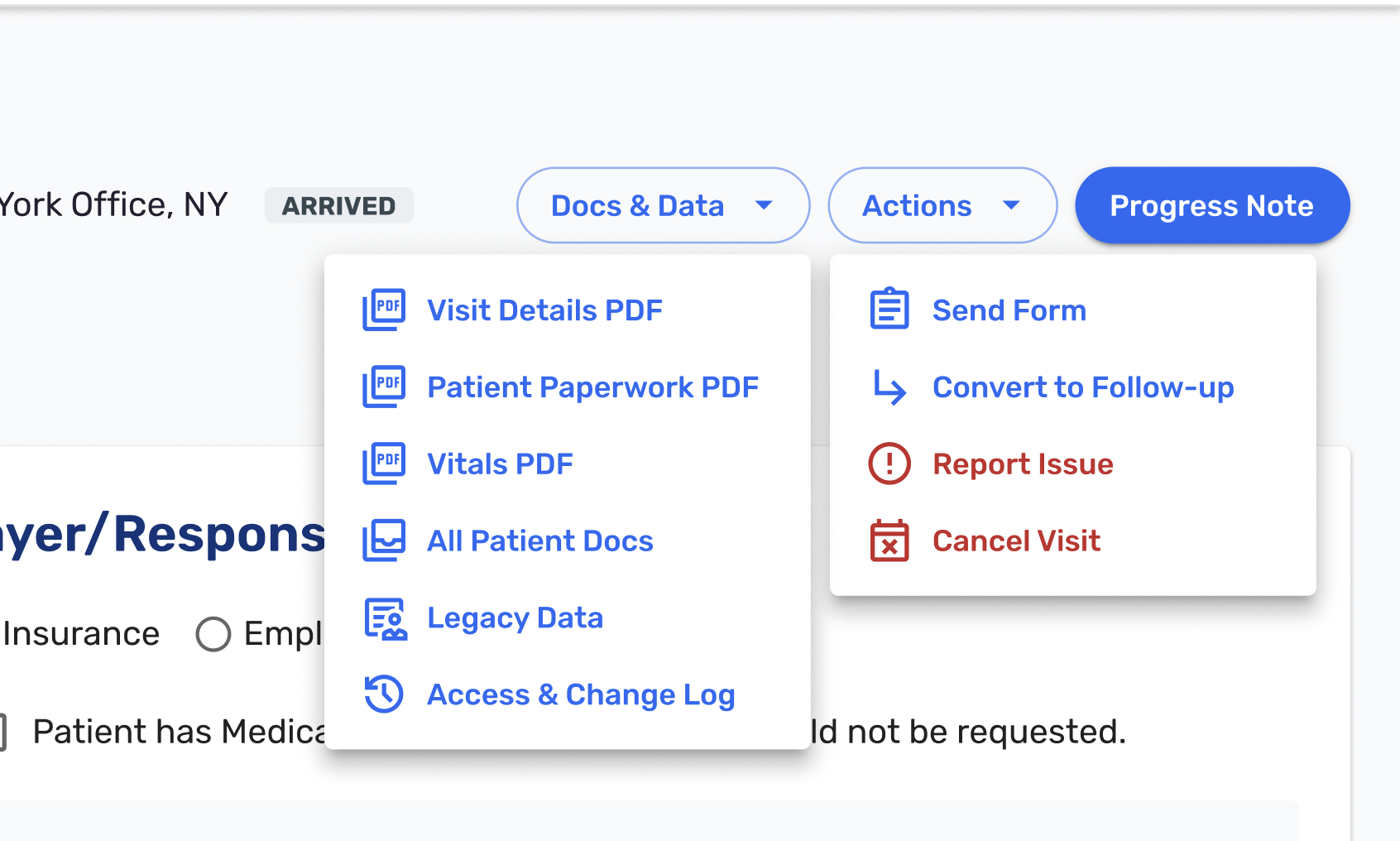
Docs & Data and Actions Buttons -
The Progress Note button is now available on follow-up visits in every status, matching the behavior added for regular visits in v1.41 (#9270 (opens in a new tab)).
Discharge
-
The Discharge & Print pop-up was reworked and is now simply called Discharge. Alongside the existing print options it allows the provider to Review & Sign with a checkbox, which can be used on its own or in any combination with the print selections (#8447 (opens in a new tab)).
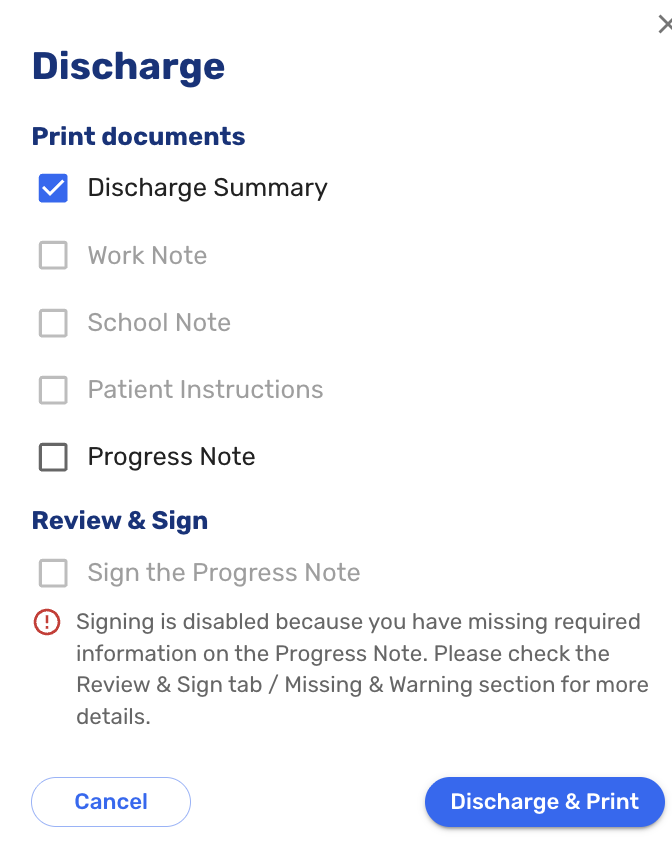
Review and Sign on Discharge The primary button changes to match what is selected, reading Discharge, Discharge & Print, or Discharge, Print & Sign. If signing is selected and the note still has incomplete fields, staff are prompted to finish them before the workflow completes. Require Supervisor Approval becomes available once the sign option is checked and triggers the normal approval flow. Selections are not remembered between uses, so staff choose fresh each time, and the standalone Discharge and Review & Sign buttons are unchanged.
Visit Details Navigation
-
Visit Details gained a Progress Note button, along with Docs & Data and Actions menus. Moving from the progress note to Visit Details was already possible through the visit date and time link in the top bar; the return trip now works just as directly (#9245 (opens in a new tab)).
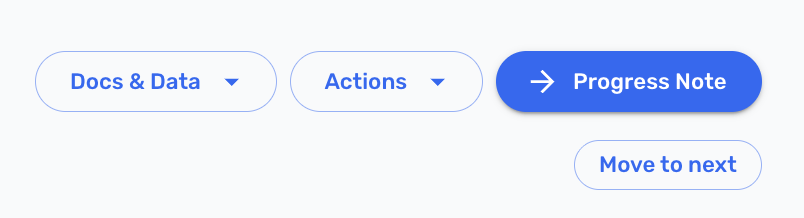
Go from the Visit Details to the Progress Note
Command Palette
- A follow-up visit can now be created from the palette. When invoked from a progress note or Visit Details the patient and visit are pre-populated, and from the patient record the patient is pre-populated (#9246 (opens in a new tab)).
- A Create Task action opens the task creation modal directly, with the same context-aware pre-population (#9363 (opens in a new tab)).
Tasks
- A clinical task assigned to you can now be reassigned to another user without first unassigning it (#4814 (opens in a new tab)).
Other Improvements
- Quick picks were restyled to look like the other form controls around them, so they read as interactive rather than as plain text (#9564 (opens in a new tab)).
- Right-clicking the Progress Note and Visit Details buttons on a tracking board row now opens the normal browser context menu instead of navigating, so either can be opened in a new tab (#4530 (opens in a new tab)).
- "Reason for Visit" now reads "Reason for Today's Visit" in both patient paperwork and the EHR. Patients were sometimes entering the reason from a previous visit (#8300 (opens in a new tab)).
- In-house medications gained "Puff(s)" as a dose unit, and Inhalation was added to the popular routes (#8408 (opens in a new tab)).
RCM & Billing
- The payment processor's invoice status now appears in the invoice list, so billing staff can see whether an invoice has been paid without leaving Ottehr (#7850 (opens in a new tab)).
Bug Fixes
- Fixed an issue where the NDC code was added to every line on the assessment rather than to the single drug item it belongs to, which could affect claim accuracy (#9560 (opens in a new tab)).
- Fixed an issue where pressing the space bar in some free text fields, such as HPI, could delete the preceding character instead of inserting a space (#9528 (opens in a new tab)).
- Numerous other bug fixes.