Changelog v1.44 - October 7, 2026
Summary
- AutoChart is a new single-page way to complete a visit note, with the note on the left and an AI charting assistant on the right. Released as a beta feature.
- Staff can now create a patient record on its own, without having to book a visit first.
- Employees can now message each other directly inside the EHR.
- A practice-managed directory of outside contacts replaces re-typing the same name, fax number, and address every time a screen asks for one.
- Ad hoc reporting received a substantial round of accuracy and usability work, with several categories of report that previously failed now producing results.
- Completed form responses can now be edited and deleted from the Visit Details screen.
- The command palette can now jump to any of the five most recently viewed progress notes that the provider was looking at.
AutoChart
-
AutoChart is a streamlined way to complete a visit note. Instead of working through the chart section by section, the provider works from a single page with the note on the left and a charting assistant on the right. The standard chart remains available at any time, and AutoChart can be opened or dismissed if desired. Both views work against the same record (#8215 (opens in a new tab)).
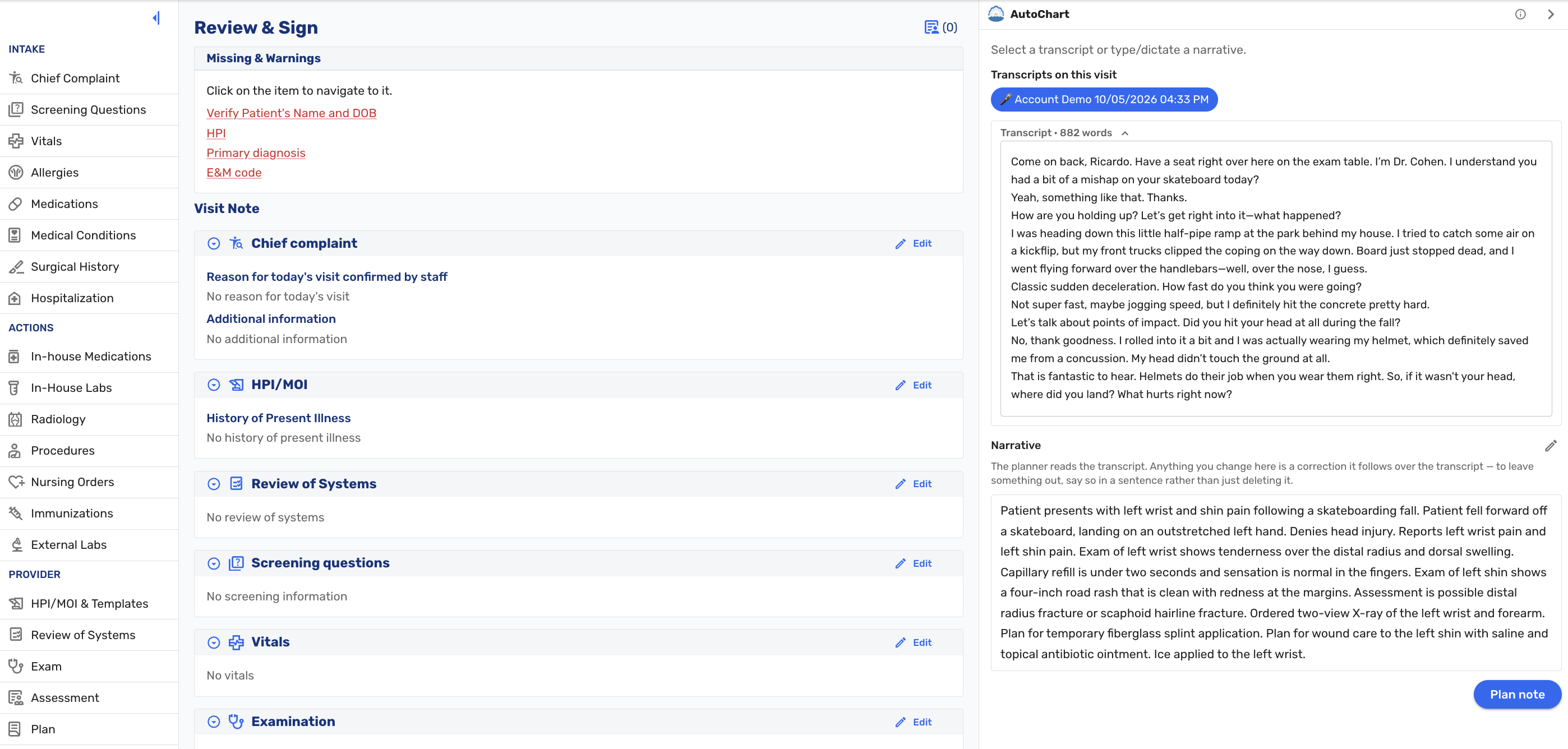
Autochart Main Interface The provider can dictate or paste a full visit narrative and have the chart completed end to end, or make single requests in plain language such as "add diagnosis sinusitis" or "remove medication Motrin." Before anything changes, the assistant shows a step-by-step plan of what it intends to chart. As the plan runs, each step is checked off, and skipped or failed steps are labeled as such rather than passing silently. The completed plan stays in the conversation so the provider can see exactly what was done.
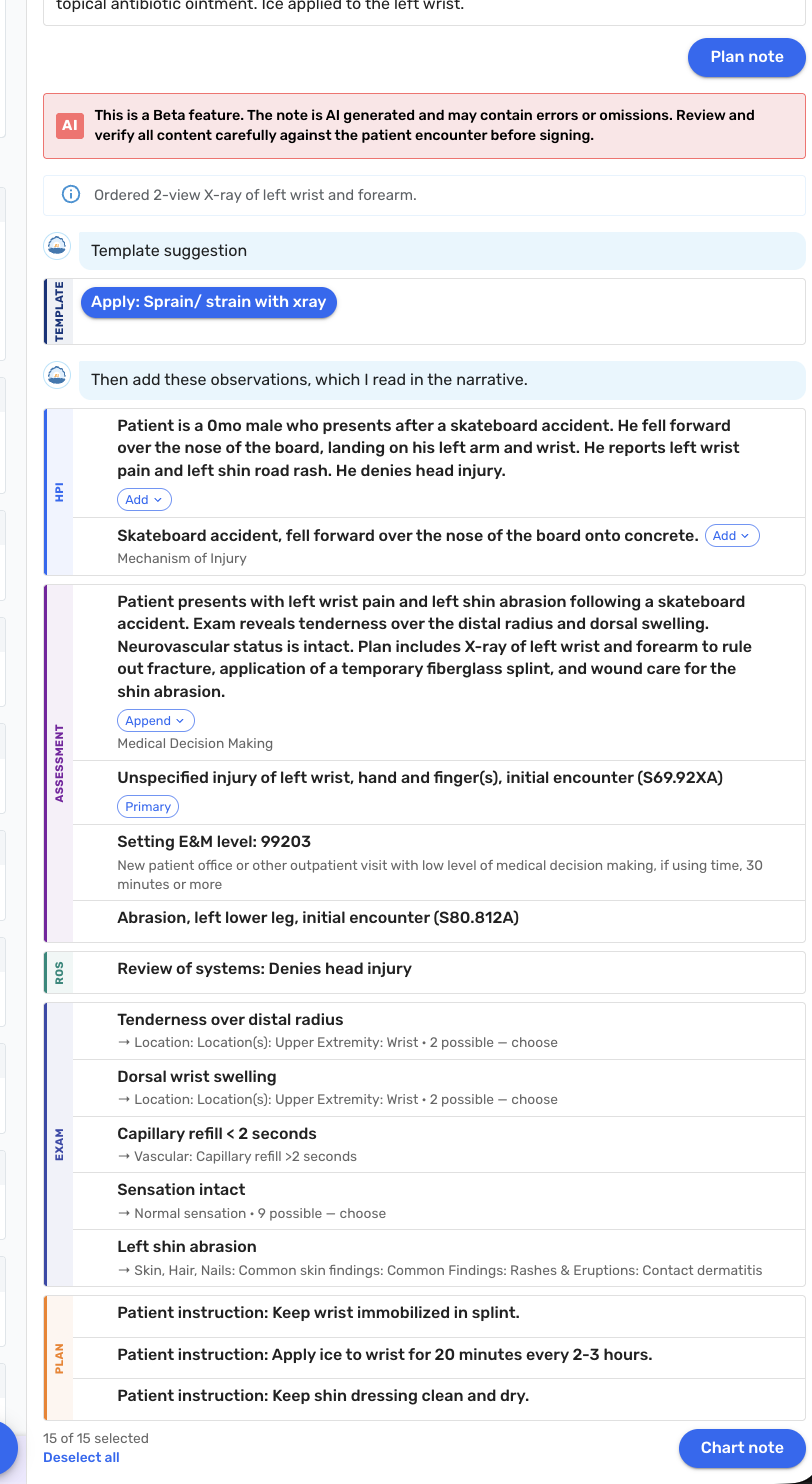
Using Autochart to plan a note Where a visit already has a transcript, from an ambient recording in the room or the patient's intake chat, it appears at the top of the page and can generate the chart in one click. A microphone button allows recording directly from the AutoChart page. Once a transcript has been used it is marked, so it is not applied twice by accident.
Every item the assistant charts is flagged for review and records where it came from. Items taken from the provider's or patient's actual words carry that snippet; items the assistant inferred rather than heard are marked as inferred. The provider can confirm, change, or remove each one individually or confirm them all at once. If the provider hand-edits a section the assistant wrote, the authorship flag for that section is cleared.
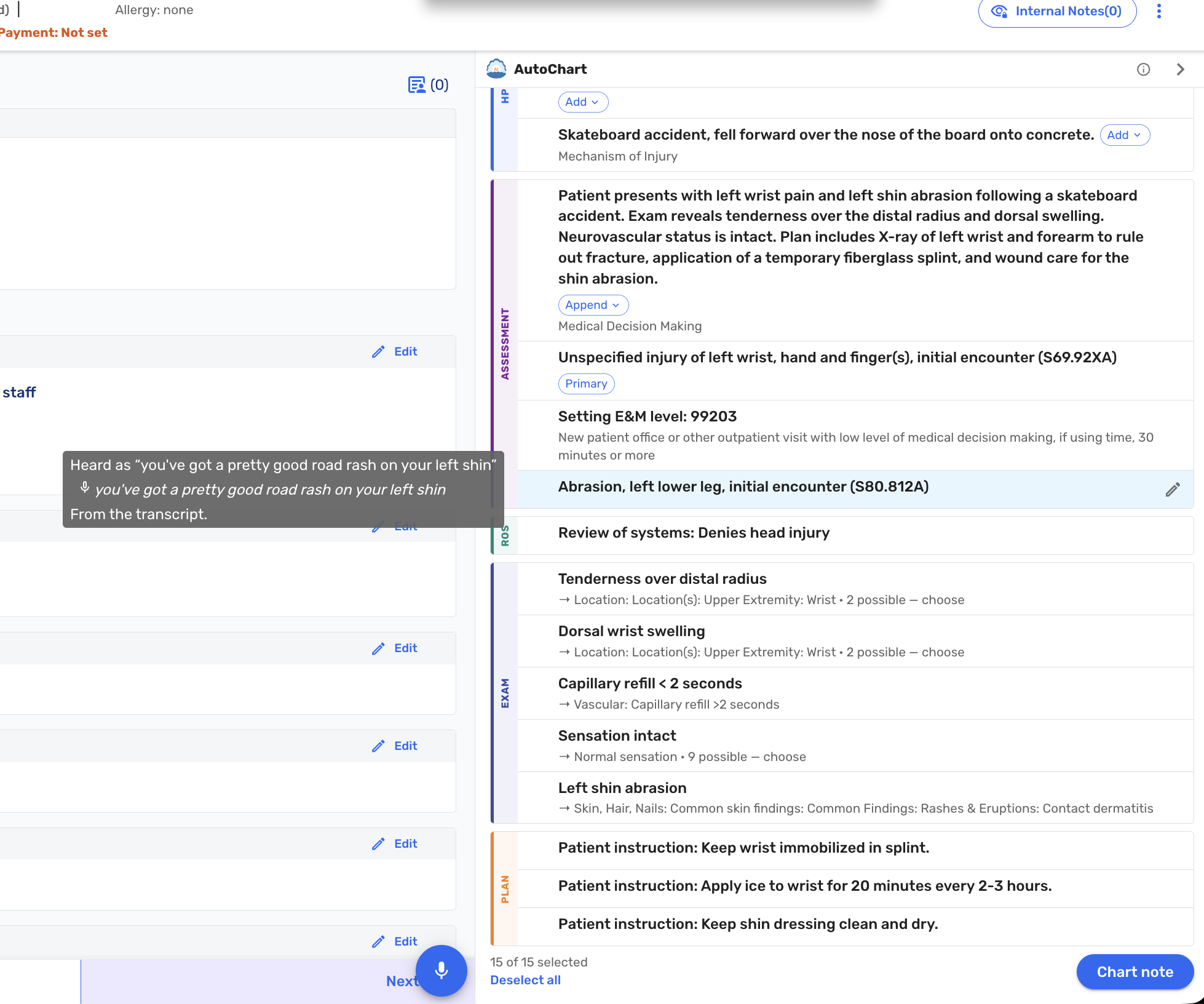
Autochart showing conversation snippet After the chart is generated, an automatic review reads the finished note against the original narrative and adds highlighted suggestions. It checks that a disposition was charted where the visit's own words call for one, that the E&M level and procedure codes match what was documented, that nothing in the note contradicts its own narrative, and that no spoken prescription commitment was dropped. These are suggestions for the provider, never silent edits.
Direct editing is always available. Every free-text section can be typed into normally, vitals can be entered by hand, and every structured item can be deleted or corrected without going through the assistant.
AutoChart is released as a beta feature and carries a notice on the page: the note is AI generated and may contain errors or omissions, and all content should be reviewed and verified against the patient encounter before signing.
Adding a Patient Without a Visit
-
Staff can now create a patient record directly, without booking a visit to do it. Previously the only way to add a patient was to create a visit for them that was not real and then clear it off the tracking board. This matters most when bringing patients across from a previous EHR, where the record exists in the old system but not yet in Ottehr (#9864 (opens in a new tab)).
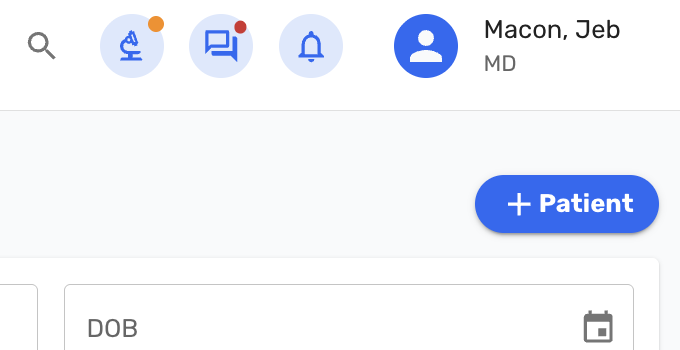
Add Patient button in the Patient search area An Add Patient button on the Patients page opens the same patient form staff already use when adding a visit, without the visit fields. As on Add Visit, staff search first: if the person already exists, the button takes them to that patient's record rather than creating a duplicate. Otherwise they enter given names, last name, date of birth, sex at birth, and a mobile number.
The result is a full patient record that appears in patient search. No visit is created, so nothing shows up on the tracking board. Staff land on the new patient's Patient Information page to fill in the rest: address, email, insurance, responsible party and so on. No text or email is sent to the patient.
The mobile number identifies the account holder, meaning whoever logs in to the patient portal, which is often a parent rather than the patient. If an account holder already exists with that number, the new patient is added to them and they will see all of their patients in the portal. Otherwise a new account holder is created. The number is also saved as the patient's own mobile and can be changed later on the Patient Information page.
A visit can be added for the patient later in the usual way, by staff or by the account holder through the portal. Add Visit itself is unchanged and always creates a visit. Note that patients with no visits do not appear in visit-based reports such as Recent Patients.
In-App Chat
-
Employees can now message each other directly inside the EHR. A chat icon in the top right navigation bar opens a list of current conversations, each showing the other person's name and a preview of the most recent message. The icon displays an indicator when there are unread messages (#9354 (opens in a new tab)).
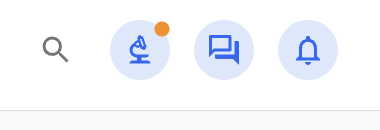
In Practice Chat Icon 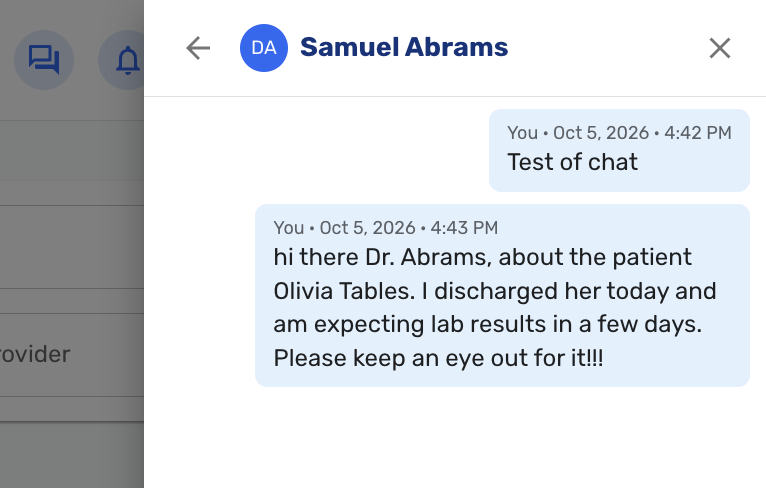
Sample Chat Session Conversations are one to one between two employees, and any employee in the organization can be reached regardless of location. Searching by name opens the conversation with that person. Each conversation shows its full history, with the sender's name and the date and time on every message. Links pasted into a message are clickable.
This first version covers direct messages only. Group chats, read and typing indicators, and image or file attachments are not included.
Third Party Directory
-
Practices can now keep a directory of the outside contacts they send things to: primary care physicians, specialists, imaging centers, schools, employers, attorneys, and anyone else. The directory replaces re-typing the same name, fax number, and address on every screen that needs one.
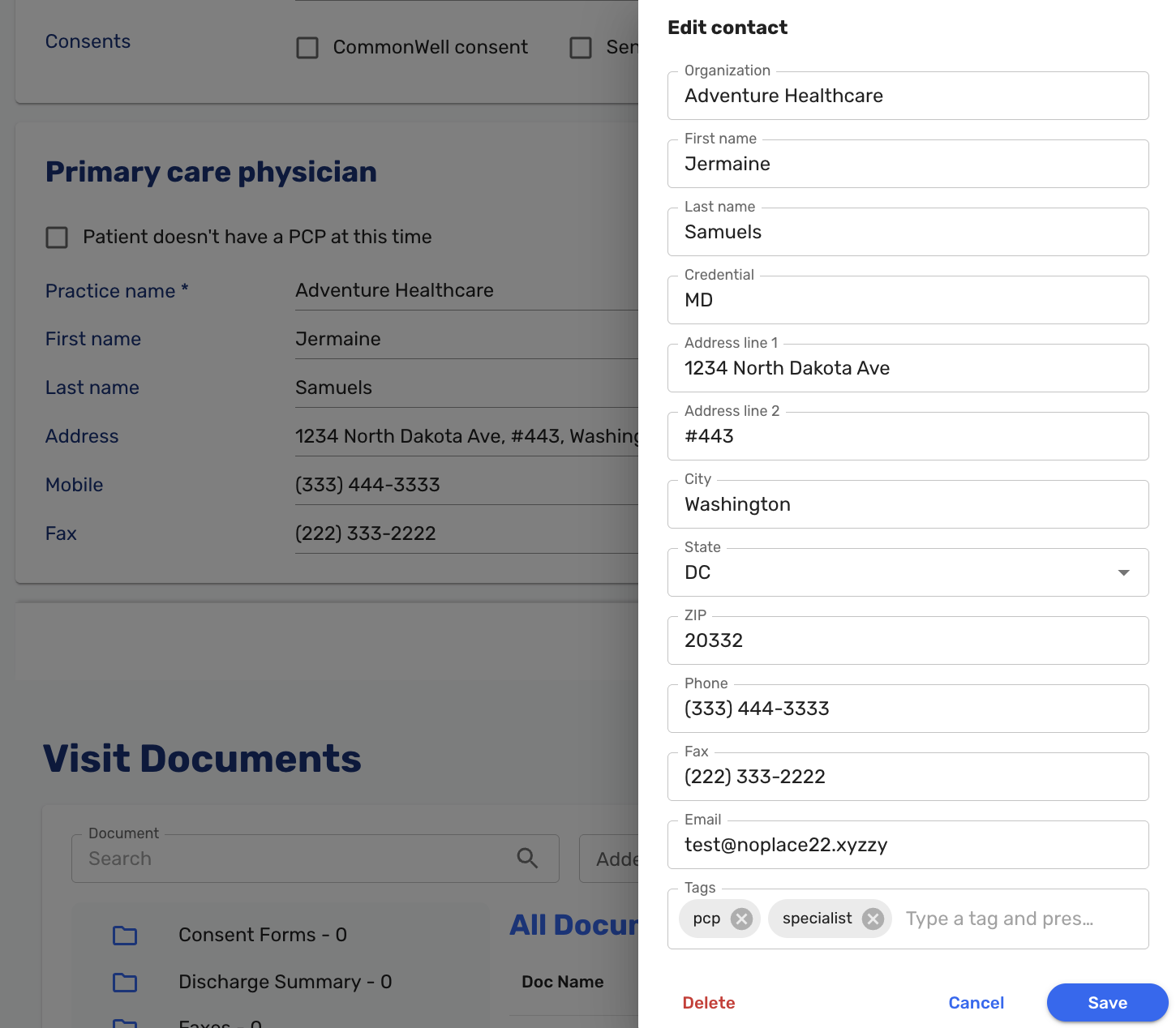
Adding a new entry to the third party contacts directory A contact is one name at one place, holding an organization name, a person, an address, a phone number, a fax number, an email address, and any number of tags. A second office for the same person is a second contact. Tags are free text and are how contacts are grouped, with common ones suggested first: pcp, specialist, imaging, lab, employer, attorney, school, pharmacy, and hospital.
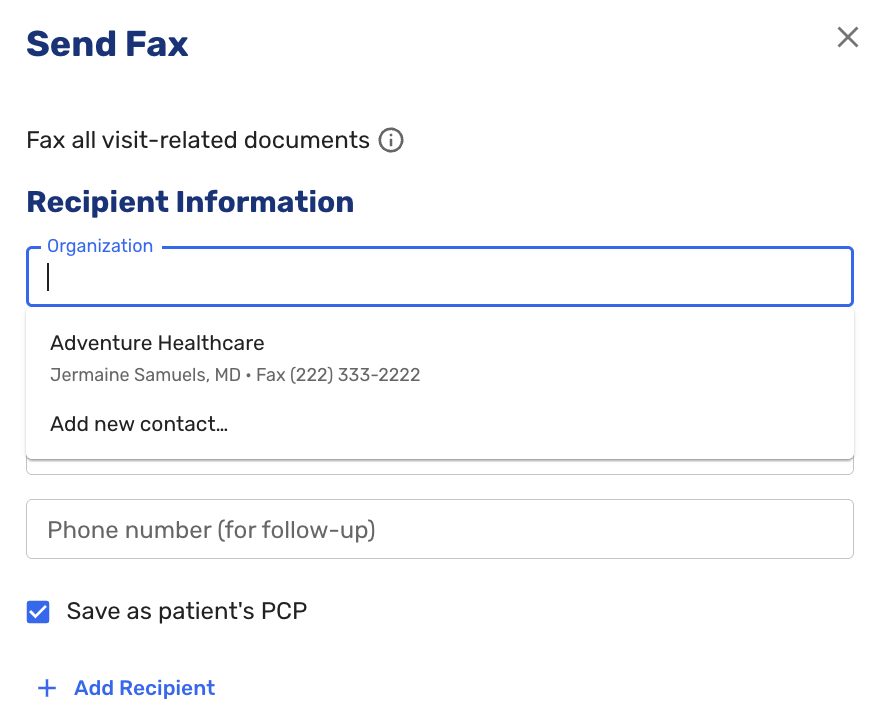
Selecting an entry from the third party contacts directory The directory appears as a picker on four screens. In the Send Fax dialog it fills the recipient's organization, fax number, and phone number. In the Primary Care Physician section of the patient record it fills the doctor's name, address, phone, and fax. In the Employer section on workers' compensation visits it fills the address, contact person, and their contact details. In the Attorney section it fills the name, email, mobile, and fax. Each of these is filtered to the relevant tag, so a PCP field shows only contacts tagged pcp.
Free typing still works everywhere the picker appears. Anyone who does not find a contact simply keeps typing and the screen behaves as it did before. Contacts are created, edited, and deleted from the picker itself, and anything typed before choosing "Add new contact" becomes the new contact's name. Any signed-in user can search, add, edit, and delete contacts.
Picking a contact fills the screen's other fields, and nothing is saved until the section itself is saved. Each screen keeps its own copy of the values, so changing a contact later does not rewrite anything already recorded on a past visit.
Ad Hoc Reporting
-
Several categories of request that previously returned errors or unusable output now work (#9601 (opens in a new tab)).
Screening question answers are now part of the reportable data. Questions such as pregnancy status, breastfeeding, vaccination status, whether the patient has been seen in the past three years, and who the history was obtained from can all be reported on.
Radiology order timing is now available. Each imaging order carries its status along with the times it was ordered, performed, and reached preliminary and final read, so questions like how long an X-ray takes to move from pending to preliminary can be answered.
Reports on patients currently in a given status now compute wait time correctly and are scoped to the current day, rather than including stale visits from earlier dates and showing a wait time of zero.
Chart presentation was improved. Long category labels are truncated with the full text available on hover instead of spilling across the chart, and axis titles are no longer cut off at the edges.
When a report needs a data layer that was not initially loaded, a banner now explains what is happening while the layer loads and the report rebuilds, rather than briefly showing an incomplete report and silently replacing it.
Visit Details
- Completed form responses can now be edited and deleted from the Visit Details screen. This feature will also allow staff to input the questionnaire responses for patients who might otherwise be unable to fill it out. Previously, submitted forms were the one item on that screen staff could not correct, so a data entry error had no remedy (#8862 (opens in a new tab)).
Command Palette
- A Recent Notes option now lists the five most recently viewed progress notes, so providers can return to a chart they were just working in without searching for the patient again. Each entry shows the patient's name, date of birth, and date of visit. The list is held for the current session only and is deliberately not saved to the browser, so that patient names and dates of birth are never written to disk; reloading the page starts it empty (#9482 (opens in a new tab)).
- The Add Follow-up command is now available whether or not a patient is currently in context, and it behaves according to where it was invoked from. From a progress note or Visit Details it opens the follow-up form for the current patient and links the current visit as the originating encounter. If the current visit is itself a follow-up, it links the original visit instead. From a patient record it opens the form for that patient without linking an encounter. With no patient in context it opens the generic Add Visit flow (#9784 (opens in a new tab)).
Patient Record
- A Legacy Data button was added to the patient record. Previously legacy data was reachable only from the visit details page, which meant it could not be consulted outside the context of a specific visit (#8568 (opens in a new tab)).
Radiology
-
The Mark as Reviewed button is now present on orders in final status. Previously it appeared only on preliminary reads, so a final read could not be marked reviewed (#9304 (opens in a new tab)).
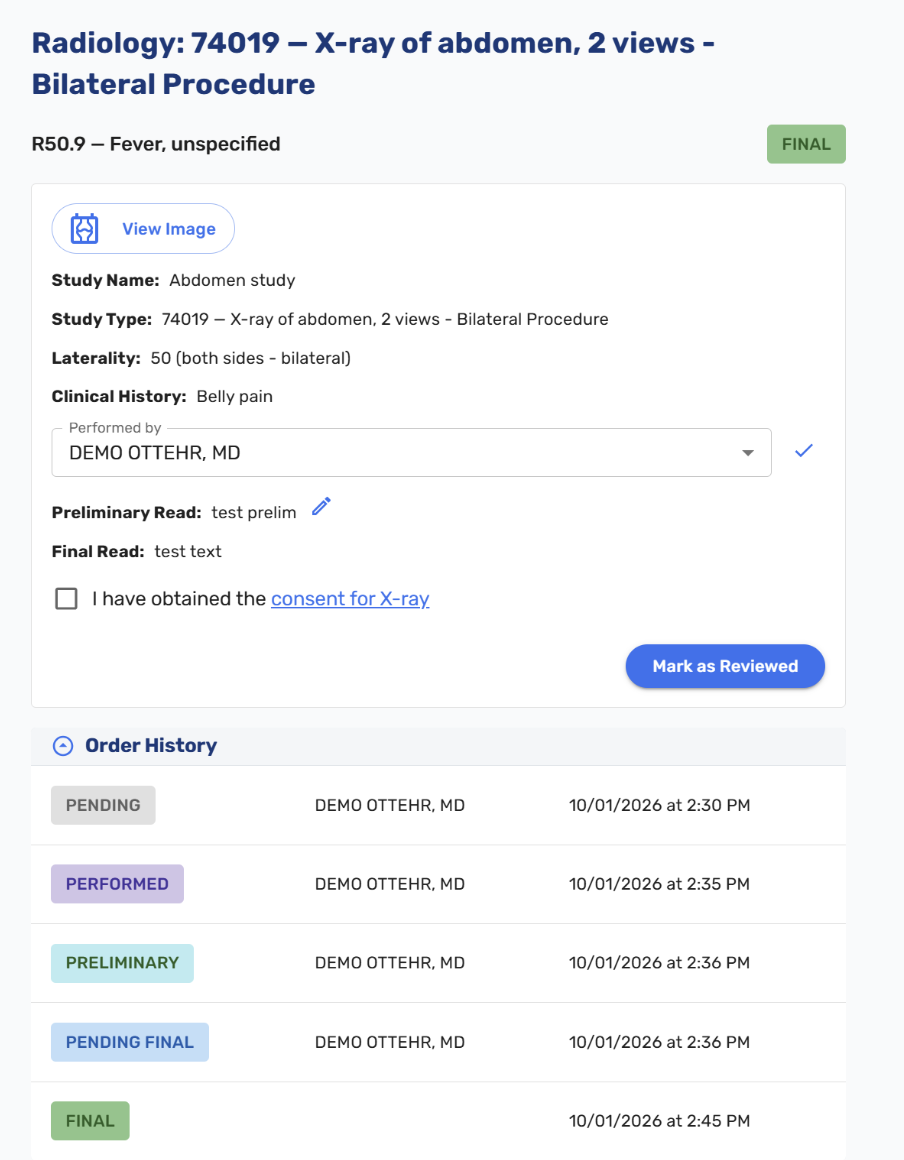
Marking a radiology study reviewed
Reports
- The Visit Overview report now includes only discharged visits. Prebooked appointments were previously counted on the assumption that every prebook would show up, which inflated the numbers.
RCM & Billing
- A refund issued outside Ottehr can now be recorded against the original payment. Previously, if a clinic refunded a card payment by some other means, there was no way to reflect that in Ottehr, so the payment record stayed inaccurate (#9786 (opens in a new tab)).
Bug Fixes
- Fixed an issue where the progress note header displayed weight in kilograms even when the unit preference was set to Imperial (#9881 (opens in a new tab)).
- Fixed an issue where the previous patient's name remained in the browser tab title after navigating back to the tracking board (#9764 (opens in a new tab)).
- Fixed an issue where the insurance type was not pre-filled after an eligibility check ran on insurance selection (#9579 (opens in a new tab)).
- Fixed an issue where the Technique row appeared on Review & Sign and in the visit note PDF for procedures where no technique had been selected (#6675 (opens in a new tab)).
- Numerous other bug fixes (#9379 (opens in a new tab), #9518 (opens in a new tab), #9878 (opens in a new tab)).