Ottehr Billing Changelog v1.44 - October 7, 2026
Summary
Ottehr Billing is the revenue cycle management application purpose-built to work with Ottehr EHR and Oystehr APIs. It runs as its own application at its own address (for example, billing.yourdomain.com). It uses single sign-on (SSO) with the EHR and is available to users with the Billing Admin role. This first changelog covers everything included through v1.44, spanning the full claim lifecycle from the signed encounter through insurance payment and patient collections.
How it works
When a provider signs an encounter in the Ottehr EHR, a claim is created in Ottehr Billing automatically. Configurable rules then check, price, and route each claim, holding it for review when something needs a biller's attention. Claims are submitted to payers through the clearinghouse, using Oystehr's RCM service. Returning ERAs are matched to claims automatically, which updates payment amounts and claim status. Remaining patient responsibility flows into the EHR's patient balance and invoicing features. Reports summarize payments, collections, and team activity.
Ottehr Billing is designed to make claim preparation, submission, and invoicing as close to touchless as each billing team wants. Billers set up rules that take over repetitive work, so fewer claims need attention over time. Every change to a claim is recorded in its history, whether a biller or a rule made it.
Practices can send signed encounters to Ottehr Billing, to their existing RCM integration, or to both, which allows a gradual transition (#7197 (opens in a new tab)).
On the roadmap
Upcoming work includes:
- Manual entry of ERAs received on paper or as PDFs
- Actions on multiple claims at once
- An aging receivables report for insurance
- Eligibility checks within the billing workflow
- Import and sync of provider and facility data
- A claim review rule powered by Oystehr AI
Claims
Finding and exporting claims
-
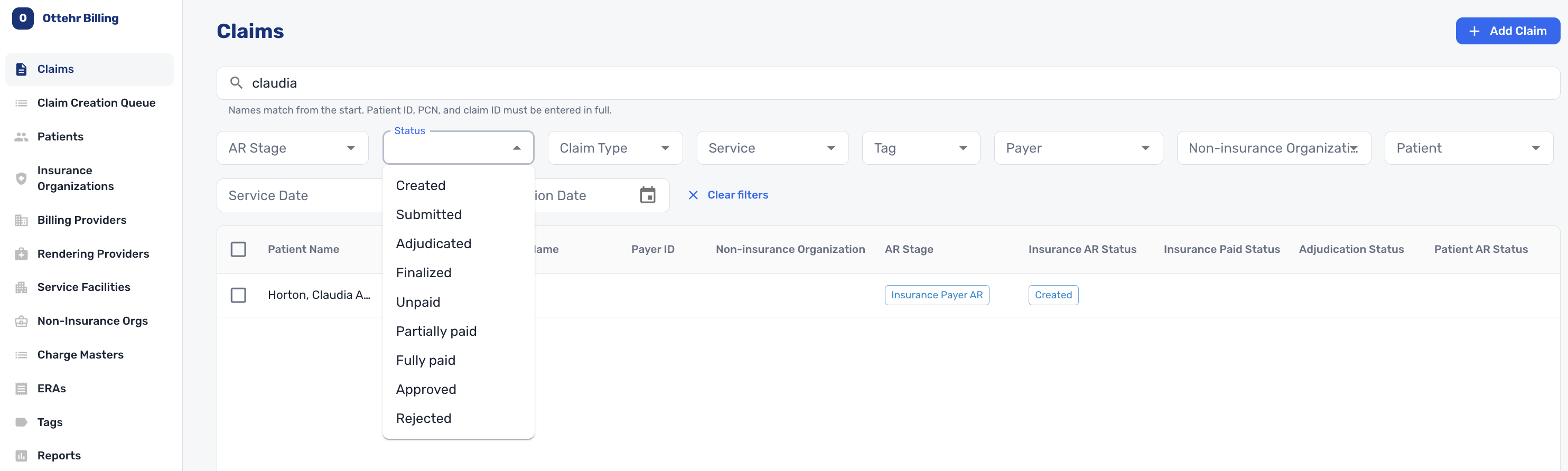
Billers can search claims by patient name, provider name, patient ID, PCN, or claim ID. Name searches match the beginning of a name, and IDs must be entered in full (#6946 (opens in a new tab), #8533 (opens in a new tab)).
-
Claims can be filtered by AR stage, status, claim type, service, tag, payer, non-insurance organization, patient, service date, and claim creation date. Filters accept multiple values, and they stay in place when a biller opens a claim and returns to the list (#7945 (opens in a new tab), #7943 (opens in a new tab), #8928 (opens in a new tab), #9311 (opens in a new tab), #9107 (opens in a new tab)).
-
Claim lists can be exported to CSV, either the current page or every claim matching a search (#8845 (opens in a new tab), #9092 (opens in a new tab)).
-
Navigation links behave like normal browser links, so billers can open claims and records in new tabs (#8920 (opens in a new tab)).
Finding claims 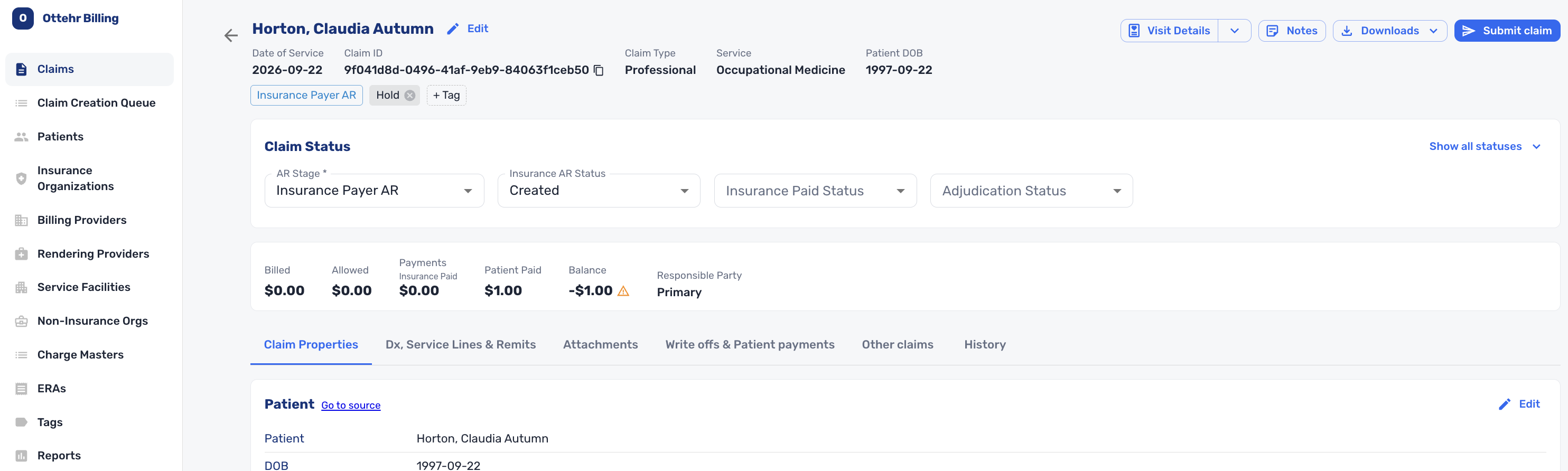
View Claim Details
Creating and editing claims
- Billers can create a claim manually by choosing the patient, coverage, providers, service facility, diagnoses, and service lines.
- Claim details show the date of service, claim type, service, and patient at a glance. The claim ID and PCN copy in one click, and date of service, claim type, and service are editable (#6949 (opens in a new tab), #8411 (opens in a new tab), #8532 (opens in a new tab)).
- Each claim tracks its progress with separate statuses: AR stage (insurance payer, patient, or non-insurance payer), insurance AR status, insurance paid status, and adjudication status. A summary shows billed, allowed, paid, and balance amounts (#8092 (opens in a new tab), #7858 (opens in a new tab)).
- Diagnoses and service lines are editable, including which diagnoses apply to each line. CPT and ICD-10 fields search standard code sets and also accept practice-defined codes (#8210 (opens in a new tab), #8218 (opens in a new tab), #8281 (opens in a new tab)).
- Service lines for in-house medications can carry an NDC with dosage, along with the ordering provider (#8358 (opens in a new tab)).
- Claims record the insurance type and appointment type. They can also carry a secondary insurance from the patient's coverages (#8405 (opens in a new tab), #9184 (opens in a new tab)).
- Claims can record accident information: the accident date, the type of accident (auto, employment, or other), and the state for auto accidents (#9708 (opens in a new tab)).
- Each section of a claim links to its source record (the patient, provider, or facility). An EHR link opens the visit's details or its progress note (#8386 (opens in a new tab), #8647 (opens in a new tab), #9556 (opens in a new tab)).
- The Other claims tab lists the patient's other claims.
- Billers can preview a professional claim as a CMS 1500 form and download it as a PDF. A values-only version is available for printing onto preprinted forms (#8945 (opens in a new tab)).
Notes, attachments, and history
- Billers can add notes to a claim from a side panel. Notes appear in the claim history with the author and time (#8903 (opens in a new tab)).
- PDF attachments can be uploaded to a claim and sent along with the claim submission (#8944 (opens in a new tab)).
- Claim history records every change to a claim, who or what made it, and when. When a rule changes a claim or places it on hold, the history names and links the rule and includes any error message (#8496 (opens in a new tab), #9166 (opens in a new tab), #9157 (opens in a new tab), #8677 (opens in a new tab)).
- A Timely Filing Report can be generated for any claim as a PDF, listing the claim's identifiers and submission history. Billers can use it to show a payer that the claim was filed on time (#9517 (opens in a new tab)).
Submitting claims
- Claims can be submitted one at a time from the claim or in bulk from the claims list. Every submission runs through the Claim Submission Rules first. Claims that pass all rules go straight to the payer through the clearinghouse (#8222 (opens in a new tab), #8676 (opens in a new tab), #8685 (opens in a new tab)).
- Billers can choose to submit a claim without running rules when needed (#9156 (opens in a new tab)).
- Billers can resubmit a claim as a correction or void a previous submission (#9029 (opens in a new tab)).
- When a claim has secondary coverage, the submission tells the primary payer about it. When the primary payer's ERA arrives, Ottehr Billing checks whether the claim was forwarded to the secondary payer and tracks it accordingly (#9176 (opens in a new tab)).
- When payer rejections come back, the claim's insurance AR status changes to rejected, and the rejection details appear in the claim history (#9294 (opens in a new tab)).
- Any claim can be exported as X12 (#8319 (opens in a new tab)).
Institutional claims
- Institutional claims (CMS-1450, also known as UB-04) can be edited and submitted electronically. They include bill type, discharge status, admission type, point of origin, and admission and discharge dates and times, plus revenue codes on service lines. This release covers the most commonly used institutional fields (#8657 (opens in a new tab), #9414 (opens in a new tab), #9464 (opens in a new tab), #9507 (opens in a new tab), #9548 (opens in a new tab)).
Claim Creation Queue
- The Claim Creation Queue shows each signed encounter as it becomes a claim, with its status, patient, payers, and timestamps. It can be filtered by patient, payer, date, and status (#7792 (opens in a new tab), #8666 (opens in a new tab)).
- When a claim can't be created (for example, because required data is missing), the queue explains why. Billers can correct the data and retry. Error messages name the specific value that couldn't be matched, such as an NPI (#8643 (opens in a new tab), #9752 (opens in a new tab), #9772 (opens in a new tab)).
- Claims are created for self-pay visits as well as insured ones. Coverage selection and pricing are handled by rules, so practices can adjust them (#8293 (opens in a new tab), #8668 (opens in a new tab)).
Patients
- The patient list can be searched by name and filtered by date of birth, MRN, and friendly ID. The newest patients appear first (#6951 (opens in a new tab), #8721 (opens in a new tab)).
- Patient details show demographics, balance, payments, and links to the patient's claims. Coverages can be added, edited, and removed (#6952 (opens in a new tab), #8208 (opens in a new tab)).
- Billers can add a patient manually.
Insurance Organizations
-
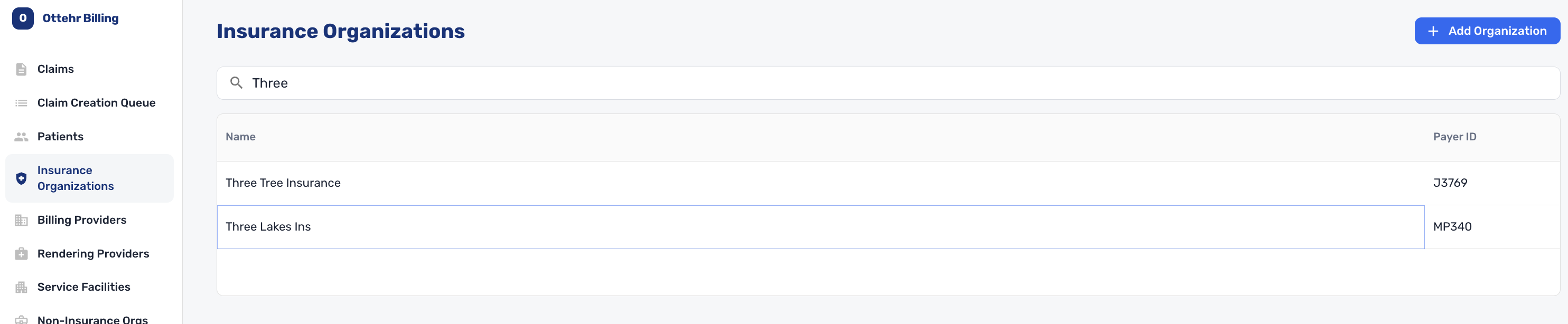
Insurance Organizations lists the payers available through the clearinghouse, with their payer IDs, and can be searched by name (#9422 (opens in a new tab)).
-
Practices can add custom payers for insurers outside the clearinghouse. Each custom payer records:
- insurance types (workers' compensation, auto, medical, or other)
- submission method and its details
- the claim form it accepts (CMS-1500, CMS-1450, or other)
- notes and contacts
-
Custom payers appear in payer searches in both Ottehr Billing and the EHR (#9422 (opens in a new tab), #9424 (opens in a new tab)).
Billing Insurance Organizations
Providers and Facilities
Billing and rendering providers
-
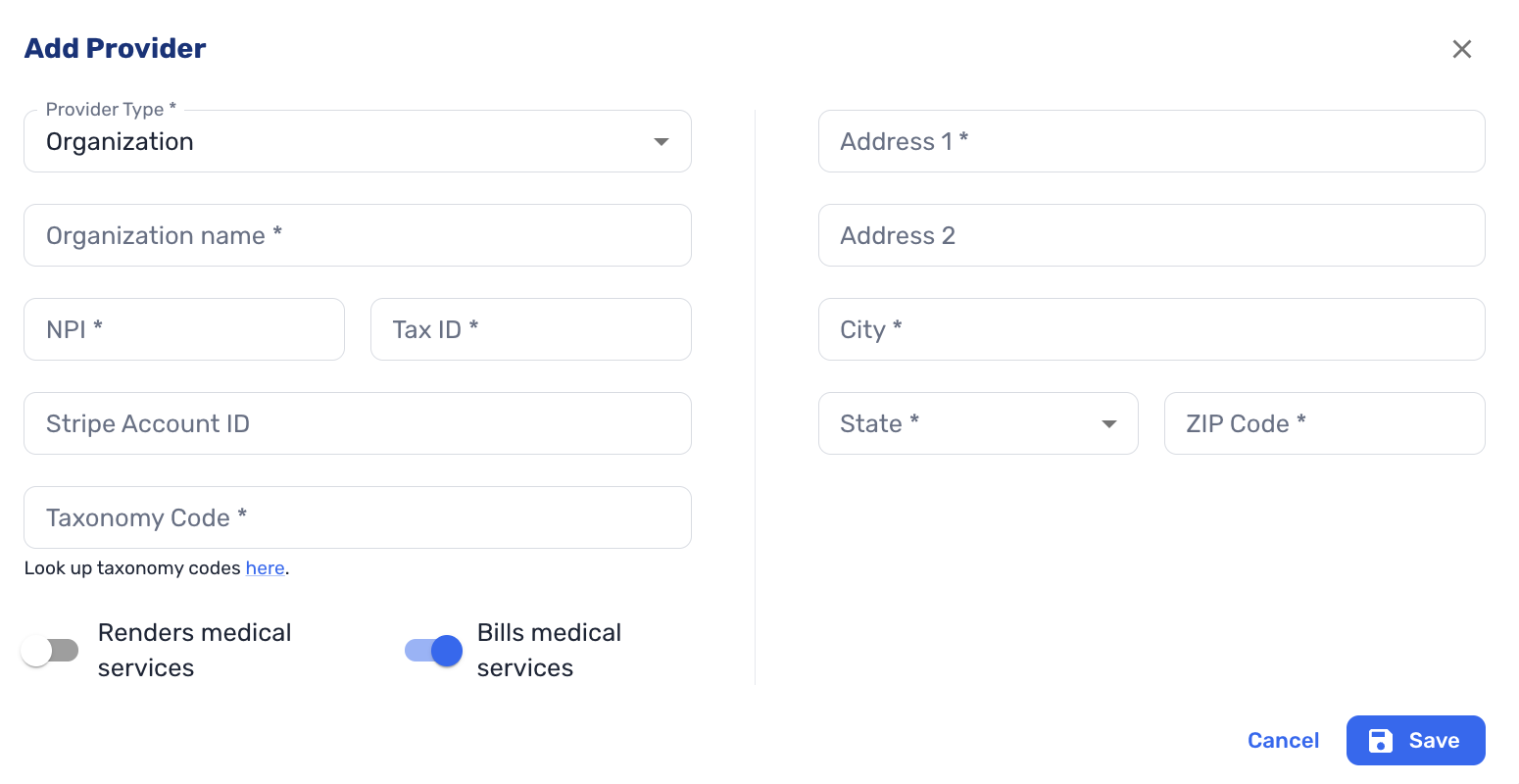
Billing and rendering providers share one directory. Each provider is an organization or an individual, marked as rendering services, billing for them, or both. A group that does both needs only one record (#6953 (opens in a new tab), #6954 (opens in a new tab)).
-
Individual providers require an NPI and taxonomy code, and organizations also require a tax ID and address. A link to the NPI registry helps with taxonomy lookups, and NPIs are validated on entry (#9026 (opens in a new tab), #8434 (opens in a new tab), #1755 (opens in a new tab)).
-
Rendering providers can record a license type, number, and state for claims that require it, such as workers' compensation claims (#9706 (opens in a new tab)).
Add Rendering Provider
Service facilities
- Service facilities record name, NPI, CLIA number, place of service, and address. The CLIA number carries onto claims and into the electronic submission, and the place of service can be applied to service lines by rule (#8024 (opens in a new tab), #8536 (opens in a new tab), #8892 (opens in a new tab)).
- Multiple service facilities can share an NPI or CLIA number. A warning flags the overlap without preventing the save (#9559 (opens in a new tab), #9733 (opens in a new tab)).
Non-Insurance Orgs
-
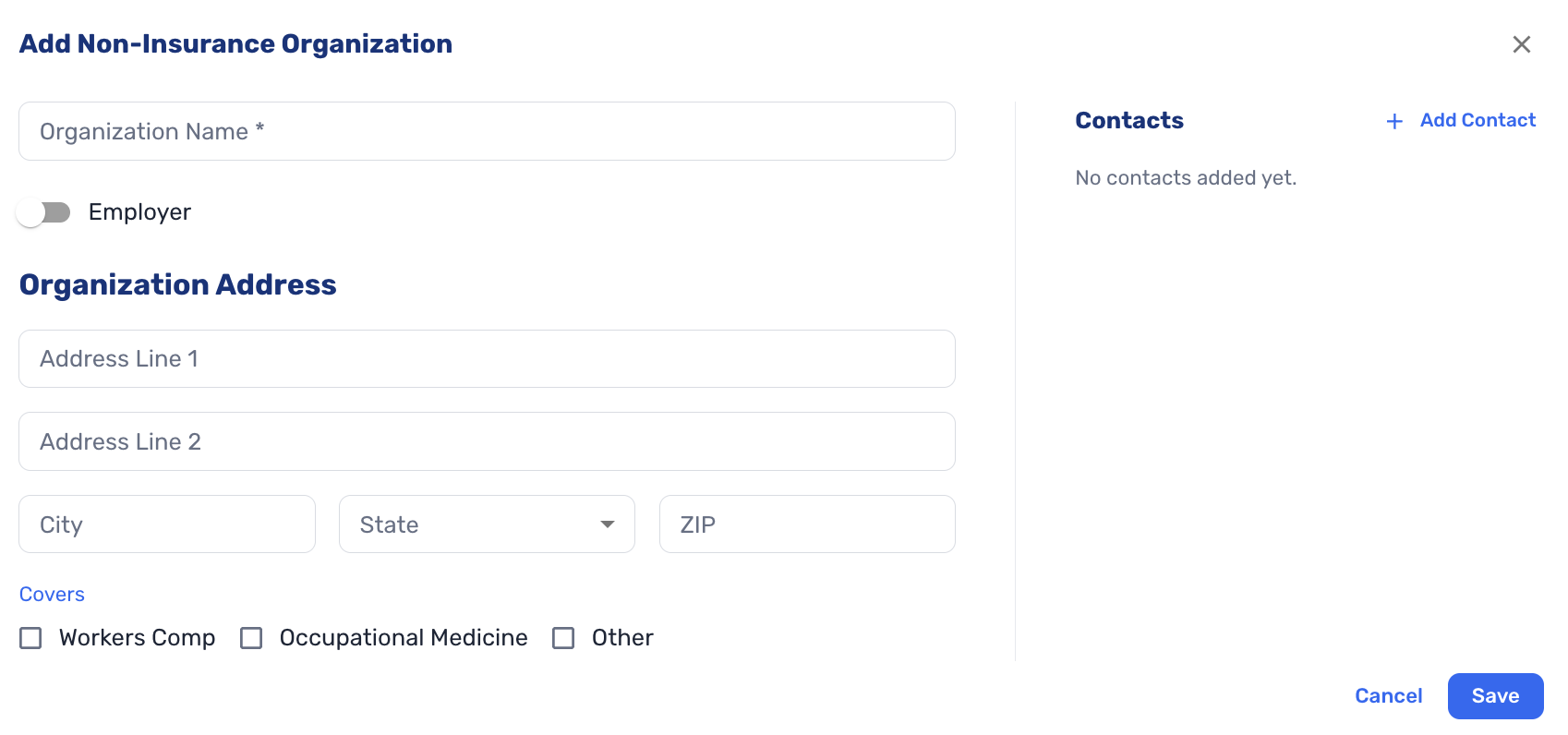
Practices can maintain a directory of organizations that pay for care outside insurance, such as employers, with an address and contacts. An Employer toggle marks organizations that are employers (#8937 (opens in a new tab), #9609 (opens in a new tab)).
-
Each organization records how to bill it for workers' compensation, occupational medicine, or another named arrangement:
- Workers' compensation can route to an insurance payer through the clearinghouse, or be billed to the organization directly.
- Direct billing records a preferred method (email, online portal, fax, or mail) and the details for each channel (#8937 (opens in a new tab)).
-
Billers can assign an organization to a claim and use organizations in rule conditions and actions. Assigning an organization doesn't change the claim's AR stage or insurance payer (#9299 (opens in a new tab)).
-
The EHR can use these organizations in registration paperwork and visit details, in place of its own employer list. When registration names an organization with a workers' compensation payer, that coverage is added to the patient automatically. This is controlled by a setting and is off by default (#8938 (opens in a new tab)).
Insurance Organization
Charge Masters
-
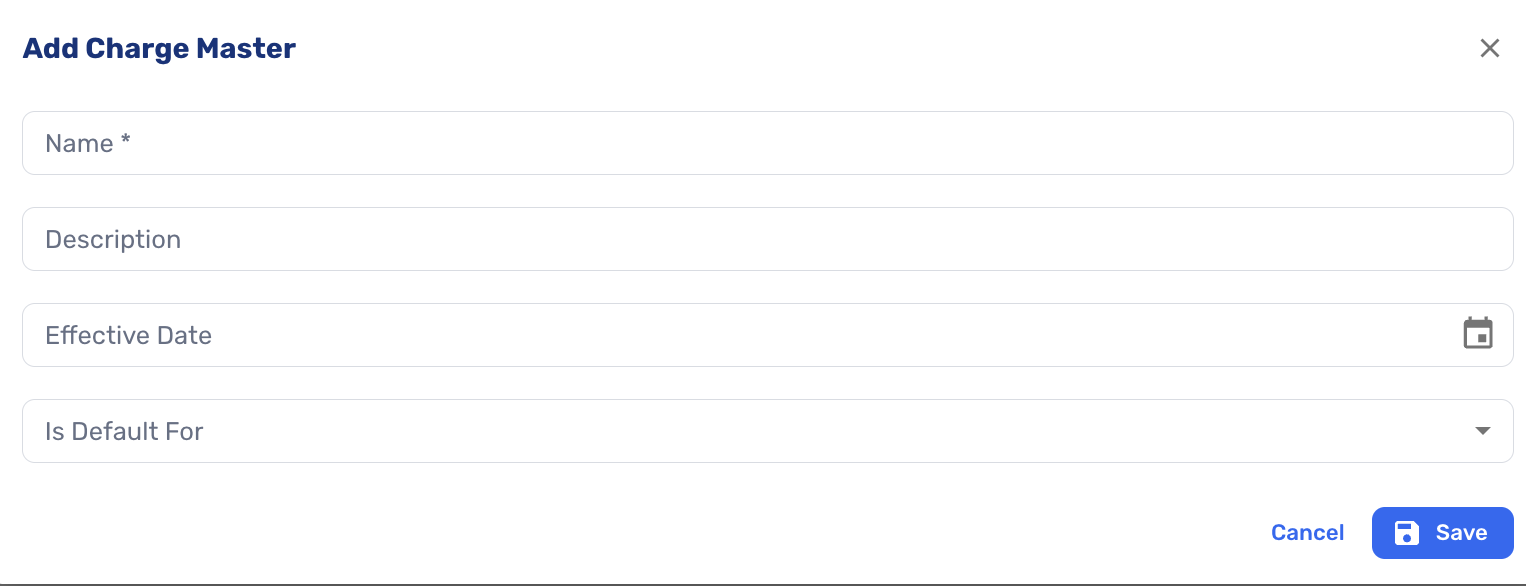
Charge masters set prices by procedure code, each with a name, description, and effective date. One charge master can be the default for insurance claims and another for self-pay (#7128 (opens in a new tab), #8344 (opens in a new tab)).
-
Procedure codes can be imported in bulk, and charge masters accept non-standard codes for items that a practice bills outside insurance (#8779 (opens in a new tab), #9024 (opens in a new tab)).
-
Prices are applied to claims by a rule action, so practices control when pricing happens (#8891 (opens in a new tab)).
-
Charge masters in Ottehr Billing are configured separately from fee schedules in the EHR (#7128 (opens in a new tab)).
Add Chargemaster
ERAs
-
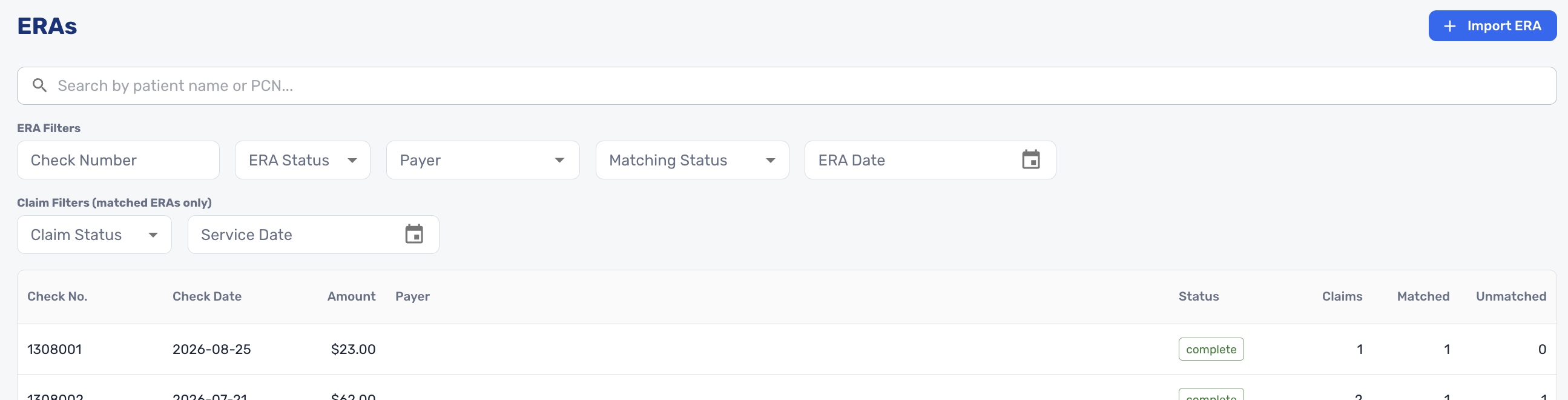
ERAs arrive from the clearinghouse automatically. They can also be imported by uploading a file (.835, .txt, .edi, .rem, or .dat) or pasting X12 text (#7293 (opens in a new tab), #9531 (opens in a new tab)).
-
The ERA list can be searched by patient name or PCN. It can be filtered by check number, ERA status, payer, matching status, and ERA date, and for matched ERAs by claim status and service date. Each ERA shows its check number, date, amount, payer, and counts of matched and unmatched claims (#6955 (opens in a new tab), #9023 (opens in a new tab), #9106 (opens in a new tab)).
-
ERA details show the check information, each claim, and adjudication by service line. Opening a claim within an ERA shows billed, paid, patient responsibility, and contractual write-off totals. ERAs can be exported as X12 835 (#9025 (opens in a new tab), #9028 (opens in a new tab)).
-
For unmatched claims, billers can search for the right claim in a movable dialog that shows the patient name and date of service from the ERA. Matches can be undone (#8221 (opens in a new tab), #9131 (opens in a new tab), #9168 (opens in a new tab), #8838 (opens in a new tab)).
-
When an ERA is matched, the allowed, paid, and balance amounts flow onto the claim, and its insurance AR status moves to adjudicated. Remittance details appear on the claim's Dx, Service Lines & Remits tab (#7858 (opens in a new tab), #9100 (opens in a new tab), #9088 (opens in a new tab)).
Add Electronic Remittance Advice
Tags
-
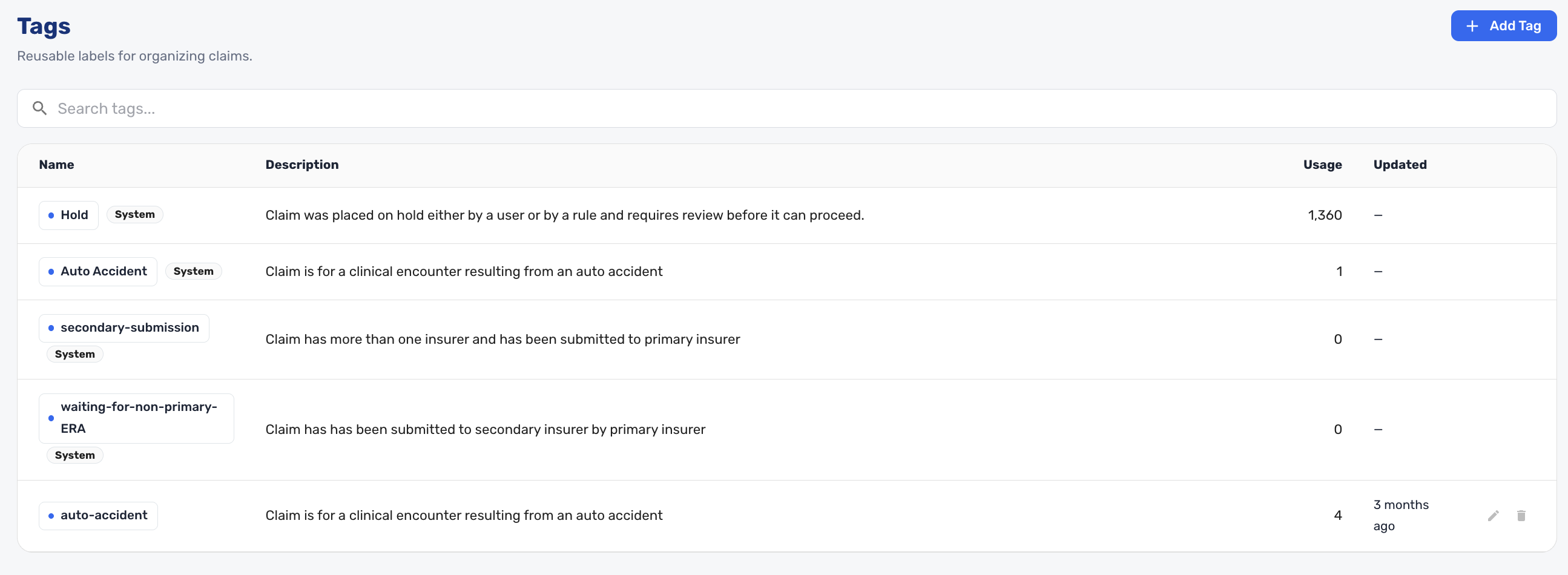
Tags are reusable labels for organizing claims, each with a description and a usage count (#7160 (opens in a new tab)).
-
Four system tags are applied automatically by the system and by rules: Hold, Auto Accident, secondary-submission, and waiting-for-non-primary-ERA. They can't be edited or deleted. Auto Accident is applied from the visit's appointment details (#8669 (opens in a new tab), #7944 (opens in a new tab)).
Add Tags
Reports
-
Reports run in the background and are cached, so billers can revisit results without waiting. Billers can view previously run reports or run a new one for a different time range (#9668 (opens in a new tab)).
-
The Payments Report shows insurance payments from posted ERAs, grouped by payer, with billed, allowed, paid, and check totals. It also covers patient payments, plus a view of insurance payments by month of service against month of payment (#7125 (opens in a new tab)).
-
The Invoice Report lists due and past-due patient invoices, broken down by upcoming, past due without a card on file, and failed payments. It also groups outstanding invoices by age (0 to 30, 30 to 60, 60 to 90 days, and older) and shows a month-end trend (#7125 (opens in a new tab)).
-
The Credit Cards on File Report lists patients with their card-on-file status and last visit.
-
The Net Collections Report shows the practice's net collection rate (#9670 (opens in a new tab)).
-
The Pipeline Report shows claims by AR stage and status across the insurance, patient, and non-insurance pipelines.
-
The Productivity Report shows claim actions by user (creates, updates, status changes, submissions, and notes), drawn from claim history.
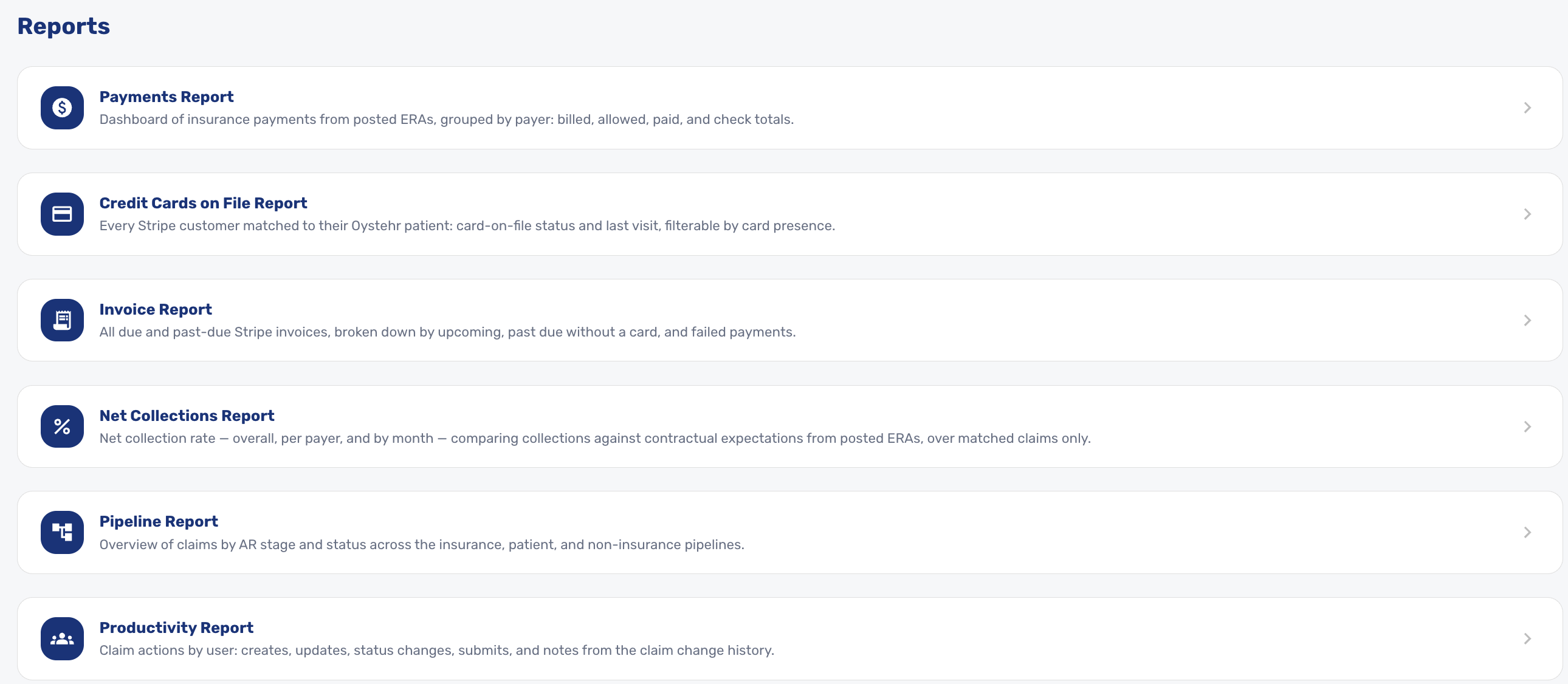
Billing Reports 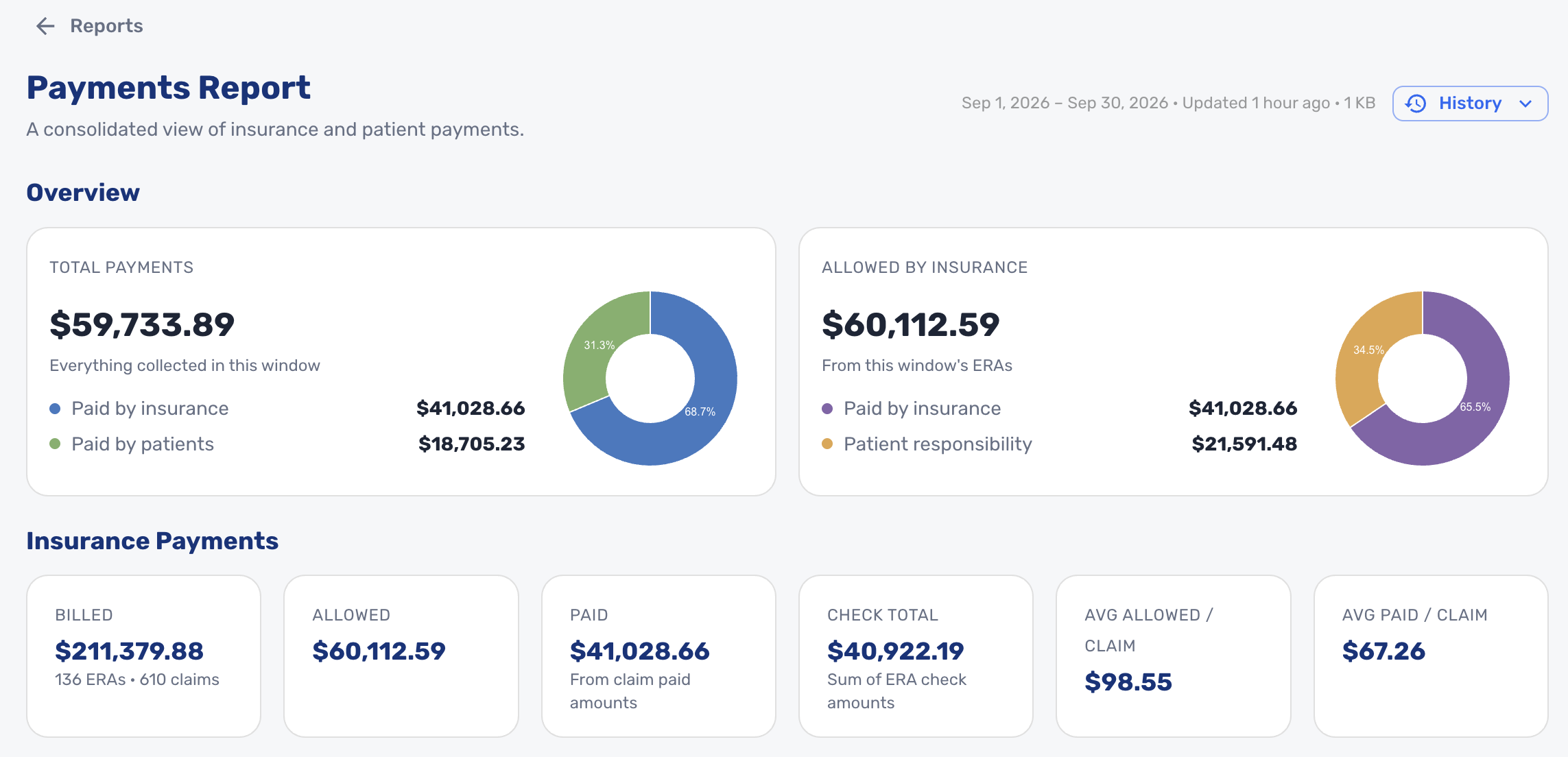
Sample Billing Payment Report
Rules
Claim Submission Rules
- Claim Submission Rules run in the specified order before a claim is submitted. Each rule checks its conditions and applies its actions. A rule can take different actions depending on which conditions a claim meets, so one rule can handle several cases. A claim that needs attention is held with the Hold tag (#8604 (opens in a new tab)).
- Conditions can match nearly any claim property. That covers:
- claim basics: type, service, dates, billed amount, codes, and place of service
- tags and status
- patient demographics
- primary and secondary insurance
- providers and service facility, down to NPI, tax ID, taxonomy, and CLIA
- Comparisons fit the data (amounts, dates, lists, text, and regular expressions). Property labels make clear whether a field refers to primary or secondary coverage (#8672 (opens in a new tab), #8927 (opens in a new tab), #9207 (opens in a new tab), #9362 (opens in a new tab), #9595 (opens in a new tab)).
- Actions can:
- set any editable claim field
- apply tags
- add, update, or remove service lines
- swap the rendering provider, billing provider, or service facility
- Dedicated actions set prices from the charge master and place of service from the service facility. New service lines can take their date of service from the claim, from the first service line, or from a set date. They can include the primary diagnosis, all diagnoses, or specific ones (#8672 (opens in a new tab), #8891 (opens in a new tab), #8892 (opens in a new tab), #9114 (opens in a new tab), #9116 (opens in a new tab)).
- Rules can't reference a payer, tag, provider, or facility that doesn't exist. If an action can't be applied to a claim, the claim is held rather than partially changed (#8672 (opens in a new tab)).
- Institutional claim fields and revenue codes are available as both conditions and actions (#9189 (opens in a new tab)).
- Rules can match and change a large number of claim details, so a complete reference is available that lists every condition, comparison, and action in plain language. It's produced automatically from the product itself, so it always matches what the rule builder offers. Billers and administrators setting up rules can use the billing rules reference (opens in a new tab) in the Ottehr repository to see every option in one place (#8672 (opens in a new tab)).
Pre-invoice rules
- Non-Insurance Payer Pre-Invoice Rules and Patient AR Pre-Invoice Rules work the same way for claims billed to organizations or patients. Claims that pass move to ready to invoice. These rules run for manually created claims as well (#8670 (opens in a new tab), #8722 (opens in a new tab)).
Working with the Ottehr EHR
- Claims ready for patient invoicing appear in the EHR's invoicing feature. The EHR's patient balances can draw from Ottehr Billing claims (#7122 (opens in a new tab), #7123 (opens in a new tab), #9458 (opens in a new tab)).
- Patient payments appear on the claim, whether they were collected in the EHR, taken through the payment processor, or recorded manually as cash or check (#8783 (opens in a new tab), #7910 (opens in a new tab), #7130 (opens in a new tab)).
- Billing data is kept separate from clinical data. The Billing Admin role grants access to Ottehr Billing without extending clinical access (#8234 (opens in a new tab), #7602 (opens in a new tab)).